
Compress Images to 100KB
Compress image to 100KB online. Upload images, click compress, and download instantly.
Drop images here or click to upload
Supports: PNG, JPEG, WebP
Note: All image compression happens entirely in your browser. We do not upload or store your images anywhere.
Who Actually Needs 100KB Images?
If you’ve ever run your website through Google PageSpeed Insights and stared at a wall of red warnings screaming “Serve images in next-gen formats” or “Properly size images,” you already know the answer. Image size is one of the biggest silent killers of website performance and 100KB is the number that keeps coming up as the fix.

You’re a WordPress blogger who just wrote a 1,500-word post with five photos. Each photo from your phone is 4–6MB. You publish, and suddenly your page takes 8 seconds to load on mobile. Your bounce rate spikes. Google notices. Your rankings slip not because your content was bad, but because your images were too heavy. Compressing those five images to 100KB each would’ve cut your page weight by over 95% and your load time in half.
Or you run a Shopify store selling handmade jewelry. You’ve got 80 product images, each sitting around 800KB to 2MB. Your store loads slowly, customers leave before they even see the earrings, and your conversion rate suffers. This isn’t a design problem it’s a file size problem. Getting every product image to 100KB or under is one of the highest-ROI things you can do for an e-commerce site. Website owners, bloggers, developers, marketers, and anyone building on platforms like Wix, Squarespace, Webflow, Ghost, HubSpot CMS, Magento, or PrestaShop 100KB is the number you should be aiming for, consistently.
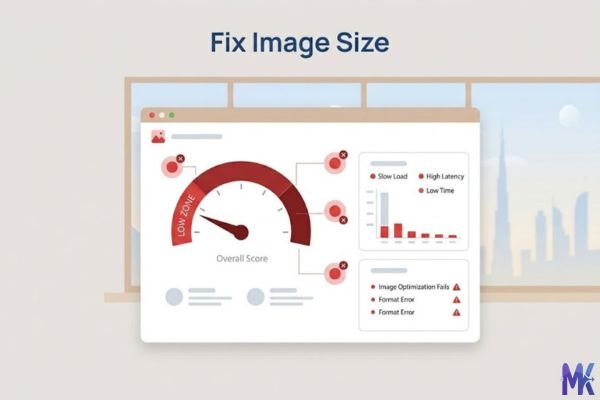
Real Platforms and Websites That Require or Recommend 100KB
| Platform | Max Allowed / Recommended | Common Use | Notes |
| WordPress (with PageSpeed) | Under 100KB recommended | Blog post images, featured images | Google PageSpeed flags images over 100KB as optimization opportunities |
| Shopify | No hard limit, but under 100KB strongly advised | Product images, collection banners | Shopify’s own performance docs recommend optimizing for web |
| Wix | No hard limit, but 100KB or less improves Core Web Vitals | Site images, blog thumbnails | Wix performance scores drop heavily with unoptimized images |
| Squarespace | Recommends under 500KB, but 100KB is ideal for galleries | Portfolio images, blog headers | Squarespace compresses on upload, but starting smaller = better results |
| Google PageSpeed Insights | Flags anything over ~100KB for optimization | All web images | Directly tied to LCP (Largest Contentful Paint) Core Web Vitals score |
| Webflow | No hard limit — performance is user-managed | CMS images, hero sections | Webflow gives full control, making compression your responsibility |
| Ghost (blog platform) | Recommends optimized images — 100KB is ideal | Blog post images | Lightweight platform; heavy images defeat the purpose |
| HubSpot CMS | No strict limit, but recommends optimized images | Landing pages, blog content | Tied to HubSpot’s built-in SEO score suggestions |
| Magento (Adobe Commerce) | No limit, but performance guides recommend 100KB or less | Product catalog images | Large catalogs with heavy images severely impact TTFB and load time |
| PrestaShop | No enforced limit — manual optimization needed | Product and category images | PrestaShop stores with 100KB images consistently outperform others in speed tests |
The pattern here is consistent: almost every major CMS and e-commerce platform either recommends or effectively requires 100KB images if you want your performance scores to stay healthy. None of these platforms are going to compress images for you to this level that’s on you.
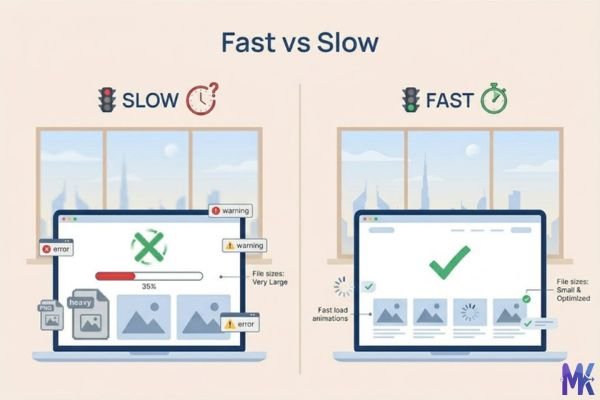
What Image Quality Looks Like at 100KB
Let’s be straight with you: 100KB is genuinely good. This isn’t a “it’s fine for web” consolation it’s actually the sweet spot where image quality and file size live in harmony for screen-based viewing.
What survives well at 100KB:
- Sharp product photos up to about 1200×800px look crisp on screens up to 1080p
- Text overlays on images remain readable without visible artifacts
- Portrait photos retain skin tones and natural gradients without banding
- Flat illustrations, infographics, and logos with solid colors compress beautifully often with barely any visible change
- Hero banners and featured blog images at 1280px wide can sit comfortably at 100KB without looking degraded
What starts to show strain:
- Highly detailed macro photography tiny textures (fabric weave, wood grain close-ups) may show slight softness
- Photos with large smooth gradients, like sunsets or sky backgrounds, can show very faint banding at aggressive compression
- Images with lots of fine hair, grass, or foliage detail may look slightly mushy at the edges when compressed hard to hit 100KB
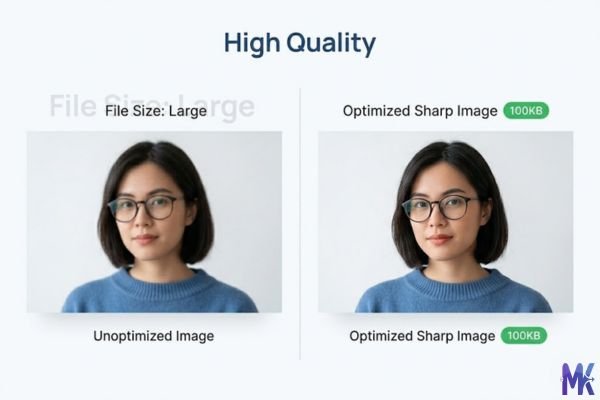
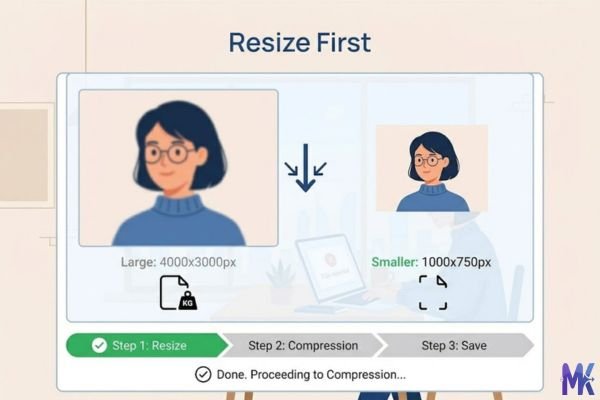
The honest tradeoff: If your original image is 3000×2000px at 4MB, compressing it to 100KB at full resolution will show noticeable quality loss. The smarter move is to resize to your actual display dimensions first a blog featured image only ever shows at around 1200×630px on most themes. Compress that resized version to 100KB and it’ll look sharp on any device a real user is actually using.
For product photography specifically, 100KB at 800×800px is practically indistinguishable from the original on a standard display. You’d need to zoom in and really hunt for the difference.
How to Get the Best Result at 100KB
Getting to 100KB without sacrificing visible quality is about being smart before you compress, not just compressing harder.
1. Resize to your actual display dimensions first Don’t compress a 4000px wide image to 100KB. Resize it to the width it actually appears at 1200px for blog images, 800px for product thumbnails, 1920px max for full-width hero banners. Smaller dimensions mean less data to encode, which means the compressor doesn’t have to throw away as much detail to hit your target.
2. Choose the right format for your image type JPG is best for photos it handles gradients and natural color transitions well. PNG works better for screenshots, graphics with text, or images with transparency. WebP is smaller than both for equivalent quality if your target platform supports it (WordPress, Shopify, and modern browsers all do), use WebP. The same visual at WebP can hit 100KB while the JPG equivalent sits at 200KB.
3. Watch your starting point If your image is 300KB and you need 100KB, that’s a 67% reduction totally doable with almost no visible loss. If your image is 8MB and you need 100KB, you’re asking for 98.75% reduction from a large-resolution file quality will suffer. Resize down first, then compress.
4. Use this tool’s bulk feature when you have multiple images If you’re working on a product catalog or blog archive, you don’t have to do this one image at a time you can upload multiple images and compress them all to 100KB in a single batch. This saves serious time when you’re optimizing an entire website rather than a single page.
5. Don’t re-compress already-compressed images If you’ve already exported a “web-optimized” image from Photoshop or Lightroom at 85% quality, compressing it again introduces double compression artifacts. Start from the original or highest-quality version you have.
6. Test on your actual device After compressing, open the image in a browser tab at full size. If it looks good to you on a regular screen at your normal viewing distance, it’ll look fine to your visitors too. The standards for “good enough” are much more forgiving in real-world viewing than in a pixel-peeping zoom comparison.
100KB vs 90KB vs 150KB — Which to Choose?
| Size | Best For | Quality at Photos | Load Speed Gain | When to Avoid |
| 90KB | High-traffic pages, mobile-first sites, pages with 10+ images | Slightly more compression, small detail loss on large photos | Marginally faster than 100KB | When image sharpness matters more than every byte |
| 100KB | The universal sweet spot — blogs, product pages, landing pages, everything | Excellent — sharp and clean on screens up to 1080p | Significant improvement over unoptimized images | When you’re targeting extremely low-bandwidth users or building AMP pages |
| 150KB | Large hero images, premium portfolios, photography sites, retina displays | Near-original quality even for detail-heavy photos | Still much better than unoptimized originals | When PageSpeed score is a priority — 150KB images still get flagged sometimes |
The practical guide:
Pick 90KB if you’re running a news site or blog where 15–20 images appear on a single archive page and every kilobyte adds up. It’s also smart for mobile-first designs where users are often on slower connections.
Pick 100KB for almost everything else. It’s the most widely recommended size across web performance guides, SEO blogs, and platform documentation for a reason it genuinely balances quality and speed better than anything on either side of it.
Pick 150KB when you’re a photographer, designer, or creative whose audience is specifically there to appreciate image quality. Or when your images are physically large (full-width, retina-display hero shots) and cropping down to 100KB would compromise the visual impact that’s core to your brand.
Common Mistakes People Make at 100KB
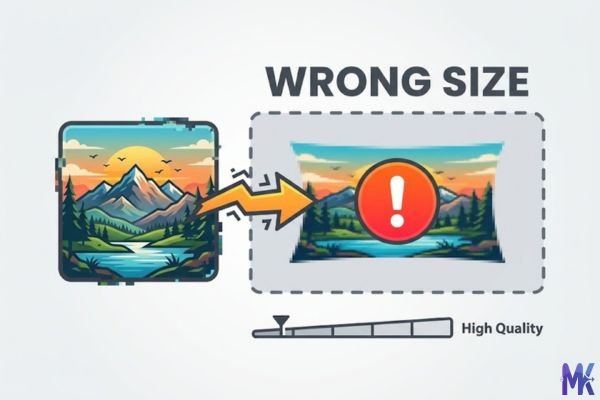
Mistake 1: Compressing the wrong resolution The most common error taking a 5000×3500px RAW export and compressing it to 100KB without resizing. The compressor has to discard so much data to hit that size at that resolution that the result looks blurry or blocky. Fix: Resize to your actual display size first. Most website images never display wider than 1280px. Resize to that, then compress.
Mistake 2: Using PNG for photos PNG is a lossless format it doesn’t compress photos efficiently. A product photo that’s 100KB as a JPG or WebP might be 400–600KB as a PNG with similar visual quality. If you’re compressing photos and struggling to get them to 100KB without quality loss, check your format first. Switch to JPG or WebP.
Mistake 3: Starting from an already-compressed file Downloading an image from a website, social media post, or email and then compressing it to 100KB compounds existing compression artifacts. The image has already been degraded once. Compressing it again makes soft areas muddier and introduces new blockiness. Always compress from the highest-quality source file you have.
Mistake 4: Assuming 100KB is always enough — and not testing PageSpeed Sometimes 100KB images still fail Google’s PageSpeed recommendations not because of the size itself, but because of the resolution or format. A 100KB PNG might still get flagged while a 100KB WebP of the same image passes. After compressing, run your page through Google PageSpeed Insights or GTmetrix to confirm the images are actually clearing the thresholds. The goal isn’t just hitting 100KB it’s improving your real-world score.
Latest from Our Blog
Explore image compressor guides, photo resizer tutorials, kilobyte reducer tips, and online image converter tools.
- How Image Compression Works (Beginner Guide + Free Online Tools)
 Every time you visit a website, your browser loads images. And if those images are too large, the page feels slow like waiting for a bus… Read more: How Image Compression Works (Beginner Guide + Free Online Tools)
 - JPG vs PNG vs WebP — Which Image Format Should You Use?
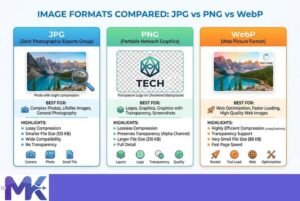 You click “Save Image” and suddenly you’re staring at three options: JPG, PNG, WebP. Which one do you pick? Does it even matter? It matters a… Read more: JPG vs PNG vs WebP — Which Image Format Should You Use?
 - How to Compress Images for Government Forms (Free & Easy Guide)
 You finally gathered all your documents. Your photo is ready. You open the government portal, click upload and then it says: “File size exceeds the limit.”… Read more: How to Compress Images for Government Forms (Free & Easy Guide)
 - Reduce Passport Photo Size — Free Online Guide (Step-by-Step)
 You have your passport photo ready. You open the application portal. You click upload and the website says: “File size too large”. This is one of… Read more: Reduce Passport Photo Size — Free Online Guide (Step-by-Step)
 - Compress Images for Job Application — Free Step-by-Step Guide
 You spent hours filling out a job application. Everything is perfect your details, your qualifications, your experience. Then you reach the photo upload section and see:… Read more: Compress Images for Job Application — Free Step-by-Step Guide
Frequently Asked Questions
WebP is the best choice for WordPress if your theme and plugins support it (and most do, as of WordPress 5.8+). WebP files are 25–35% smaller than JPG at equivalent visual quality, which means you can often hit 100KB while keeping more detail than a JPG compressed to the same size. If WebP isn’t supported in your setup, JPG with around 75–80% quality is your next best option.
No. Compression reduces file size by encoding pixel data more efficiently — it doesn’t change the width, height, or shape of your image. A 1200×800 image stays 1200×800 after compression. Only the amount of data used to represent each pixel changes.
Yes, and this is one of the most validated use cases for 100KB compression. Product images on Shopify typically display at 800×800px or 1000×1000px. A well-compressed 100KB JPG or WebP at those dimensions looks sharp and accurate on any standard screen. The visual difference between a 100KB and a 1MB product image is essentially invisible to shoppers but the speed difference is very visible in your store’s load time and conversion rate.
No, in fact, the opposite is true. Google’s Core Web Vitals score, which directly influences search rankings, measures things like Largest Contentful Paint (LCP) essentially how fast your main image loads. Images over 100KB are consistently flagged by Google PageSpeed Insights as opportunities for improvement. Switching to 100KB images is one of the most direct, controllable ways to improve your LCP score and, by extension, your ranking potential.
Not with this tool. You can upload multiple images at once and compress them all to 100KB in a single session. For a 200-image product catalog, this is the difference between a 10-minute job and a two-hour one.
This is usually a resolution mismatch, not a compression problem. If your image is 600×400px compressed to 100KB and your phone has a high-density (Retina or similar) screen, it’s scaling a lower-resolution image up to fill a sharper display. The fix is to start with a higher-resolution image (at least 1200×800px for photos displayed at 600×400) before compressing — so the compressor has more pixels to work with and the result looks crisp even on high-DPI screens.
For Google Ads display banners, 100KB is often right at or just under the maximum allowed file size for standard ad formats, making it a practical target. For social media (Instagram, Facebook, LinkedIn), the platforms re-compress your images on upload regardless of what you send — so starting with a well-compressed 100KB file gives their algorithms less to degrade. You won’t have control over the final output, but starting clean at 100KB gives you the best chance of the platform’s compressed version looking good.