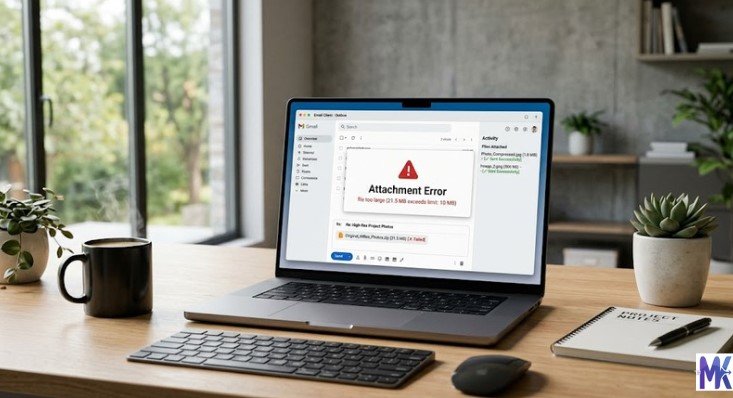
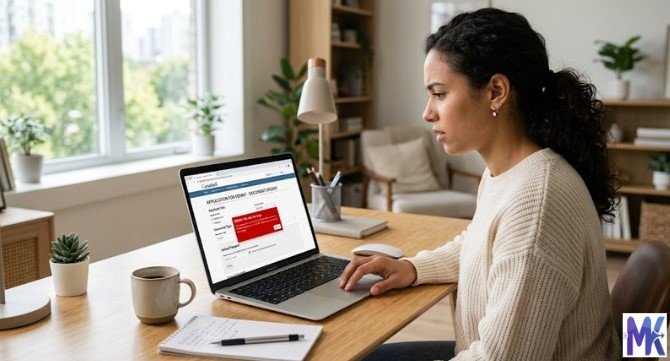
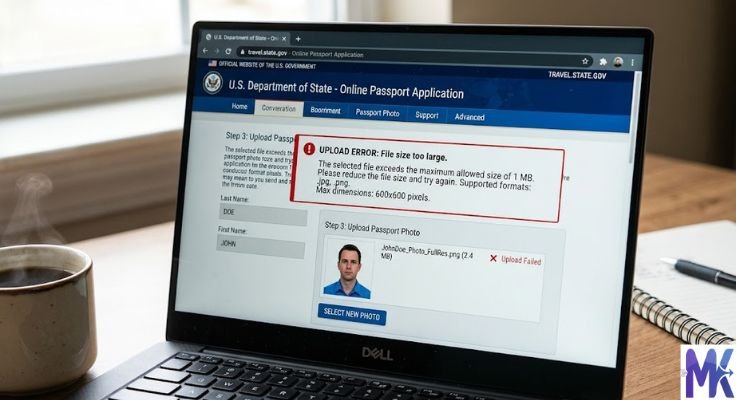
You have your passport photo ready. You open the application portal. You click upload and the website says: “File size too large”.
This is one of the most common problems people face when filling out passport applications, visa forms, or any official document online.
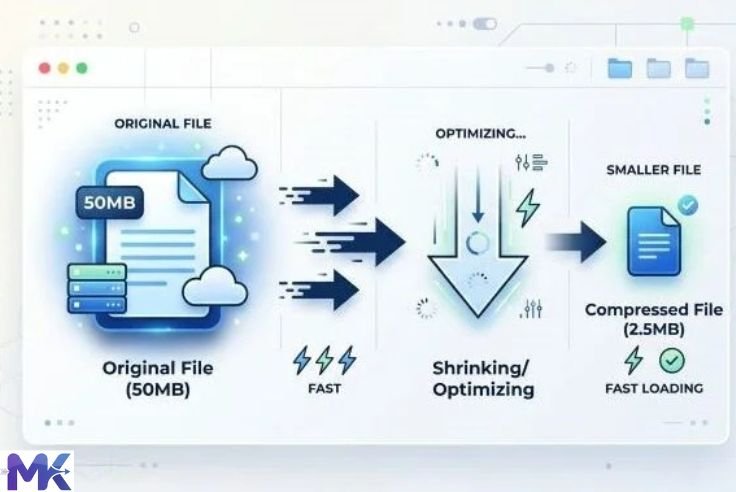
The fix is simple: reduce your passport photo size before uploading. A photo taken on a modern smartphone can easily be 3MB to 5MB. Most passport portals accept files only between 20KB and 200KB. That’s a massive gap and bridging it takes just a few seconds with the right tool.
In this guide, you will learn exactly how to reduce passport photo size, what size is accepted on different portals, which format to use, and how to do it for free without installing any software.
Why Passport Portals Have Strict Size Limits
Government websites are not like social media. They don’t have unlimited storage. They process millions of applications every day, and every uploaded file has to be stored, reviewed, and processed by their systems.
If everyone uploaded 5MB photos, those systems would slow down, crash, or become too expensive to maintain.
So portals set strict rules usually between 20KB and 200KB for photos. It keeps everything fast, organized, and consistent.
That’s why reducing your passport photo size is not optional. It’s required.
What Size Should a Passport Photo Be?
Different portals have different rules. Here are the most common ones:
India — Passport Seva Portal
- Format: JPG
- File size: 10KB to 100KB
- Dimensions: Minimum 200×200 pixels
- Background: White or off-white
US Passport Application
- Format: JPG
- File size: Between 67KB and 10MB (more relaxed)
- Dimensions: At least 600×600 pixels
UK Passport Application
- Format: JPG
- File size: Between 50KB and 10MB
Visa Application Portals (Schengen, UK Visa, etc.)
- Format: JPG
- File size: Usually under 2MB, but many require under 500KB
Government Job Forms (SSC, UPSC, State PSCs — India)
- Format: JPG
- File size: 20KB to 50KB (very strict)
General Rule: When in doubt, compress your passport photo to around 50KB to 100KB. This size passes almost every portal’s limit while keeping the image perfectly clear.
What Format Should a Passport Photo Be In?
This question trips up a lot of people. Here is the simple answer:
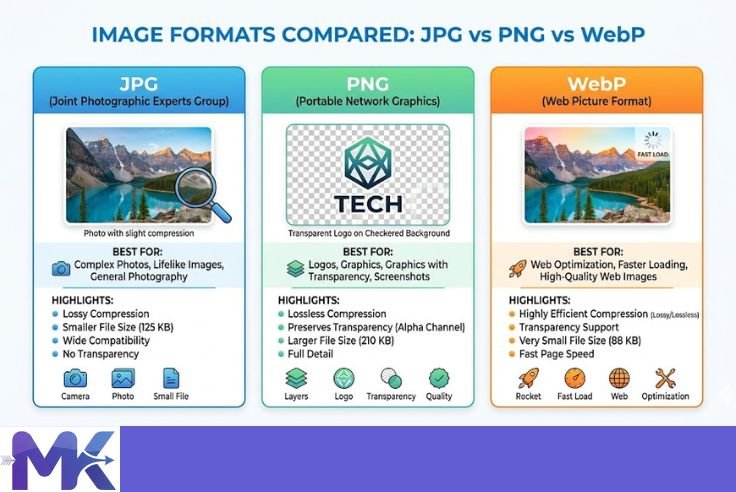
Always use JPG (also written as JPEG).
JPG is the most widely accepted format for passport photos across every country and portal. It compresses well, keeps colors accurate, and is supported everywhere.
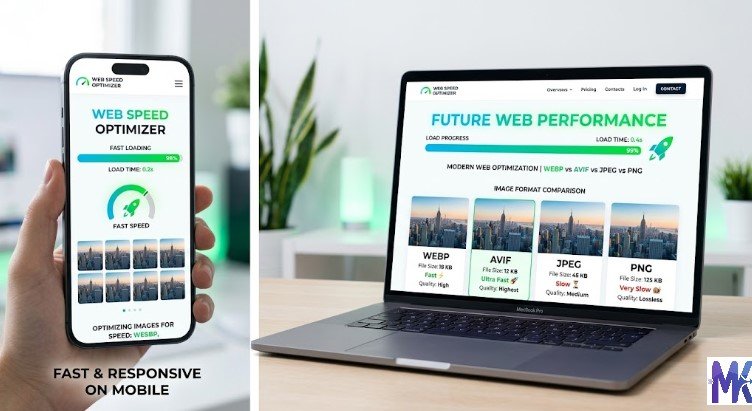
Avoid PNG for passport photos. PNG files are much larger than JPG for the same image. A passport photo saved as PNG can easily be 1MB to 3MB way above most size limits.
Avoid WebP for official submissions. It is a great format for websites, but most government portals do not accept WebP.
So the formula is: JPG format + compressed to the right size = accepted every time.
What Is the Right Dimension for a Passport Photo?
File size and image dimensions are two different things. Both matter.
- File size is how many KB or MB the file is this is what the portal’s upload limit refers to.
- Dimensions are the width and height of the image in pixels for example, 600×600 pixels.
Most passport photo requirements ask for:
| Country / Portal | Dimensions |
| India (Passport Seva) | Min 200×200 px, recommended 600×600 px |
| USA | Min 600×600 px |
| UK | 600×750 px recommended |
| Schengen Visa | 35mm × 45mm equivalent |
Always resize to the correct dimensions first, then compress the file size. Doing it in this order gives you the best quality at the smallest file size.
How to Reduce Passport Photo Size — Step by Step
Here is the full process, from taking the photo to uploading it successfully.
Step 1 — Take a Clear Passport Photo
If you are taking the photo yourself at home:
- Stand in front of a plain white wall or white bedsheet
- Make sure the room is well-lit natural daylight near a window is best
- Look straight at the camera with a neutral expression
- Use the rear camera on your phone, not the front selfie camera it produces much sharper images
- Take 4 to 5 shots and pick the clearest one
If you already have a passport photo either a digital file or a physical copy you scanned move to the next step.

Step 2 — Check the Portal’s Requirements
Before doing anything, read the exact requirements on the portal you’re applying to. Note down:
- Accepted file format (almost always JPG)
- Maximum file size (e.g., 50KB, 100KB, 200KB)
- Required dimensions (e.g., 200×200 pixels or 600×600 pixels)
This takes 2 minutes and saves you from multiple failed upload attempts.
Step 3 — Check Your Current Photo Size
You need to know your starting point before compressing.
On Windows: Right-click the photo → Properties → General tab → look at “Size”
On Mac: Right-click → Get Info → look at “Size” under General
On Android: Open Gallery → tap the photo → tap menu (three dots) → Details
On iPhone: Open Photos → tap the photo → swipe up to see file info (you may need the Files app)
Now you know exactly how much compression you need.
Step 4 — Open mbtokb.site
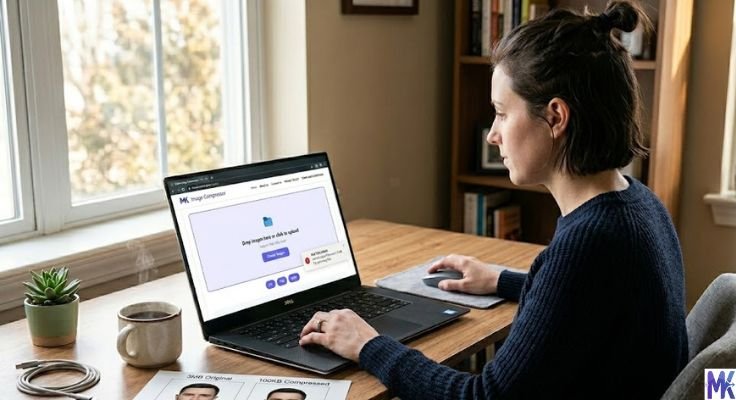
Go to mbtokb.site in your browser. It works on any device Android, iPhone, Windows, Mac. No app to download, no account to create.
Step 5 — Upload Your Photo
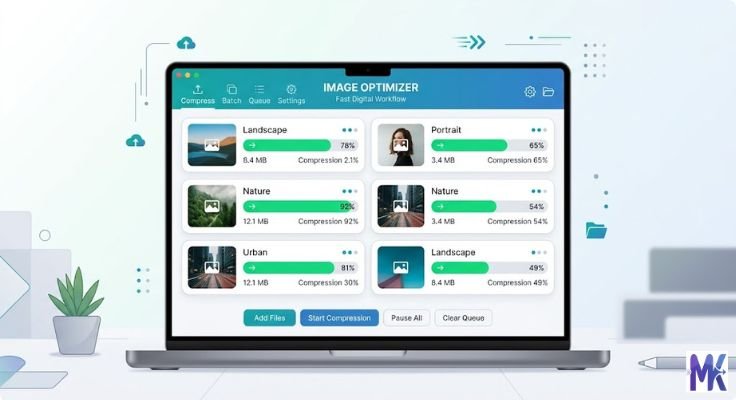
Click the upload button and select your passport photo. You can also upload multiple images at once for example, your photo and your signature at the same time and compress them all together in one go.

Step 6 — Choose Your Target Size
Option A — Custom Size: Type in the exact size you need for example, 50 for 50KB or 80 for 80KB. The tool compresses your photo as close to that target as possible.

Option B — Fixed Size (one click): Choose from ready-made size options:
For most passport portals, compressing to 50KB or 100KB works perfectly.
Step 7 — Compress and Download
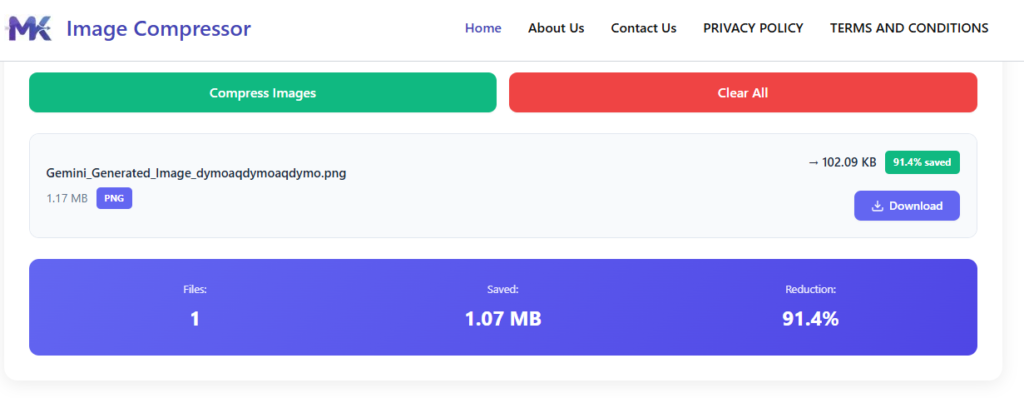
Click Compress. The tool processes your image in seconds everything happens in your browser, so it’s fast.
Download your compressed passport photo with one click. Your file is now ready to upload.
How Much Can You Compress a Passport Photo?
A lot of people worry about this. They think compressing an image will make it look blurry and unusable.
Here is the reality:
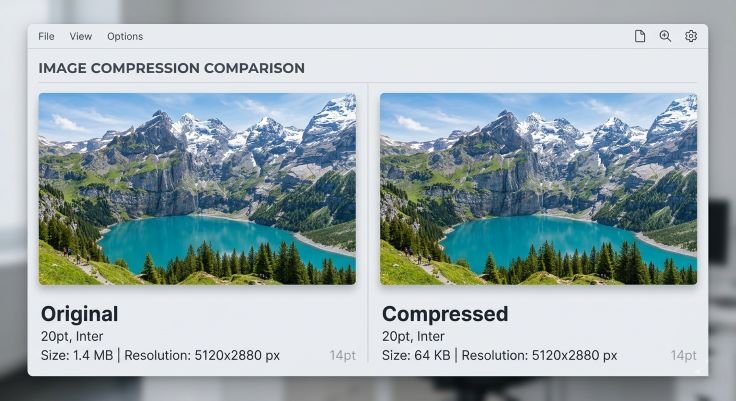
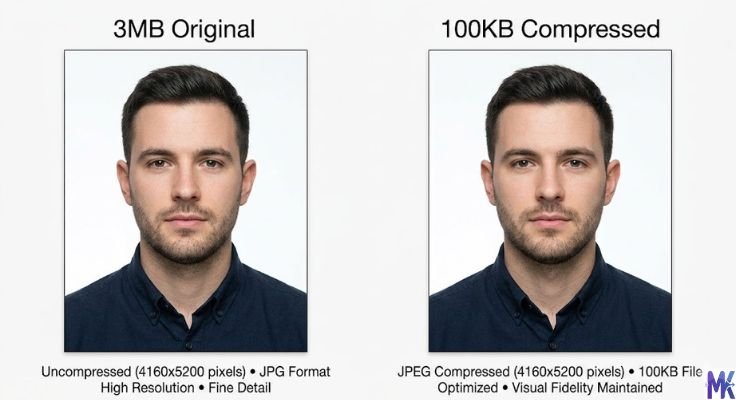
A typical passport photo taken on a smartphone might be 2MB to 4MB. Compressing it to 100KB is a reduction of about 95% and the photo will still look completely clear and sharp to the human eye.
Why? Because most of that original file size is data that your eyes cannot even see. The fine pixel-level details that get removed during compression are invisible in a normal-sized photo.
The only time quality becomes an issue is if you compress too aggressively — for example, trying to get a photo down to 5KB or 10KB. For passport purposes, compressing to 50KB or 100KB always produces a clear, acceptable result.
Reducing Passport Photo Size on Different Devices
On a Computer (Windows or Mac)
The easiest method is to use mbtokb.site directly in your browser. Upload the photo, enter your target size, compress, and download. Done in under a minute.
You can also use built-in tools:
Windows — Paint: Open the photo in Paint → click Resize → reduce the percentage (try 50% or 30%) → save. This reduces dimensions and file size together. Then check the resulting file size.
Mac — Preview: Open the photo in Preview → Tools → Adjust Size → enter new dimensions → File → Export → choose JPG and reduce quality slider. This gives you more control over the final file size.
However, built-in tools don’t let you set an exact target size in KB. For precise control like compressing to exactly 50KB — mbtokb.site is the better choice.
On Android
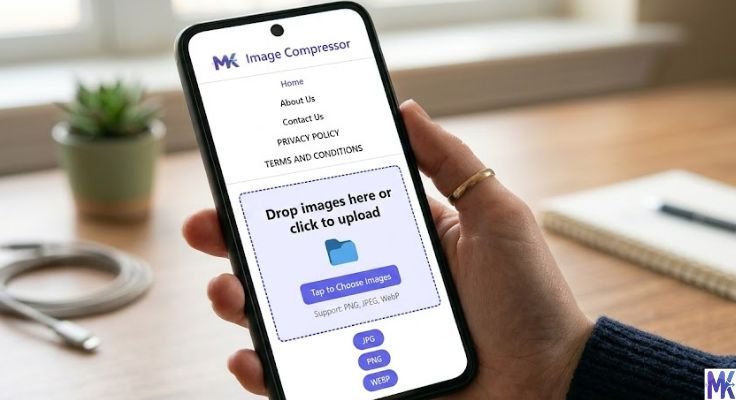
Open mbtokb.site in Chrome on your Android phone. Upload your photo from your gallery, choose your target size, compress, and download directly to your phone. The downloaded file goes to your Downloads folder and is ready to upload to any portal.
On iPhone
Open mbtokb.site in Safari on your iPhone. The process is identical upload, compress, download. The file saves to your Files app or Photos, depending on your settings.
Compressing Passport Photo and Signature Together
Many government job portals especially in India require you to upload two images: your passport photo and your signature.
Both have strict size limits. The photo is usually 20KB to 50KB, and the signature is usually 10KB to 30KB.
Instead of compressing them separately one by one, you can upload both images at once on mbtokb.site and compress them together with a single click. This saves time and ensures both files are ready at the same time.
This bulk compression feature is especially useful when you are filling out multiple application forms that need the same set of images.
Common Reasons a Passport Photo Gets Rejected
Compression solves the file size problem. But photos get rejected for other reasons too. Here are the most common ones and how to avoid them:
Wrong file format Most portals only accept JPG. If you upload a PNG or WebP file, it will be rejected regardless of size. Always save as JPG before uploading.
Wrong dimensions The portal might need a specific pixel size like 600×600. Even if the file size is correct, wrong dimensions cause rejection. Resize first, then compress.
Blurry photo If you compressed too aggressively, the photo may look blurry. If this happens, compress to a slightly larger size — try 80KB instead of 20KB.
Background not white Many portals specifically check for a white background. A grey or coloured background can cause rejection. If your background isn’t white, use a free background removal tool before compressing.
Face not centered The face should fill 70% to 80% of the photo frame. Too much background above the head, or a face that’s off-center, can cause rejection.
File name with special characters Some portals reject files with special characters in the name. Rename your file to something simple like photo.jpg before uploading.
Frequently Asked Questions
For most portals, 50KB to 100KB is the sweet spot. It is small enough to pass upload limits and large enough to stay visually clear.
Check the format (should be JPG), check the dimensions, and make sure the photo follows the visual requirements white background, centered face, no glasses. If size is still the issue, try compressing to a slightly different target, like 80KB instead of 50KB.
Yes. mbtokb.site supports bulk uploads. You can upload your passport photo, your signature, and any other images at the same time and compress them all together.
On mbtokb.site, your images are processed entirely in your browser. They are never sent to any server or stored anywhere online. Your photo stays on your device at all times.
Yes. mbtokb.site works on any phone browser. Open the site, upload your photo, choose your target size, compress, and download. No app installation needed.
Moderate compression for example, from 3MB to 100KB is invisible to the human eye. The photo looks identical. Only extreme compression to very small sizes like 5KB or 10KB will visibly affect quality.
Conclusion
Reducing your passport photo size does not have to be complicated. Once you understand what the portal requires and have the right tool, the whole thing takes less than a minute.
Take a clear photo. Check the portal’s size and format requirements. Open mbtokb.site, upload your image or multiple images at once choose your target size, compress, and download.
That’s it. Your passport photo is ready to upload, no matter how strict the portal’s size limit is.