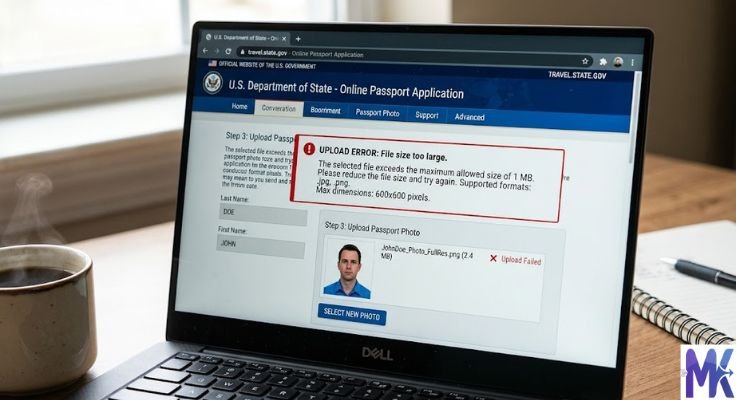
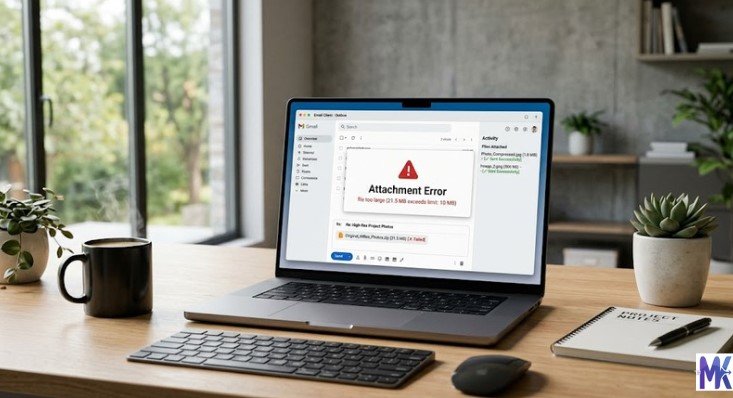
You spent hours filling out a job application. Everything is perfect your details, your qualifications, your experience. Then you reach the photo upload section and see: “File size must be between 20KB and 50KB.”
Your photo is 3MB. The portal won’t budge.
This is one of the most common problems job seekers face especially on government job portals like SSC, UPSC, Railways, and state recruitment boards. These platforms are strict. Wrong file size means your form doesn’t submit. And in some cases, a rejected application means waiting another year for the next cycle.
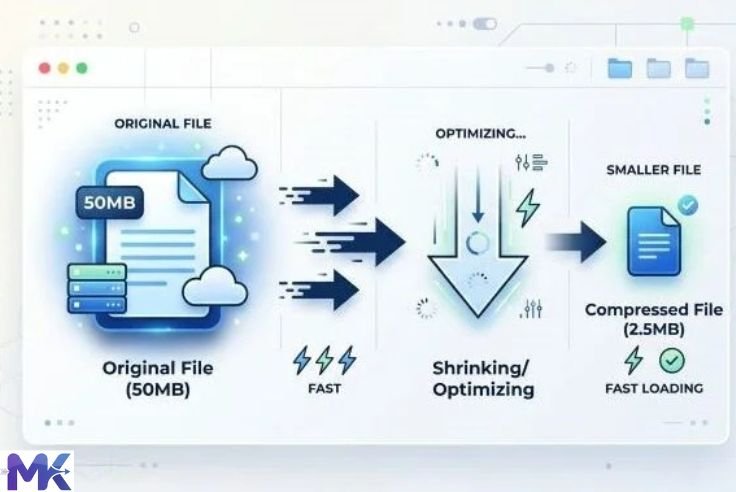
The solution takes less than a minute: compress your images before uploading.

In this guide, you will learn exactly how to compress images for job applications what sizes different portals require, which formats are accepted, how to compress your photo and signature together, and how to do it all for free without installing anything.
Why Job Application Portals Have Image Size Limits
Government and corporate job portals handle thousands sometimes millions of applications during every recruitment cycle. Every image uploaded adds to their server load.
By setting strict size limits, these portals keep their systems fast and manageable. A 20KB photo loads instantly. A 5MB photo takes time to upload, store, and open for review.
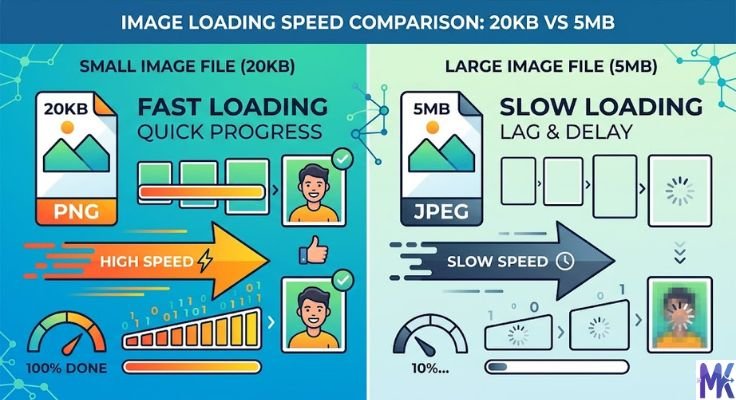
There is also a standardization reason. When a panel reviews hundreds of applications in a day, they need files that open quickly and display consistently. Small, standardized images make that process smooth.
So the size limit is not there to frustrate you. It is there for a reason and once you know how to handle it, it stops being a problem.
What Images Do Job Applications Usually Ask For?
Most job application forms especially government recruitment portals require two images:
Passport-Size Photograph
This is your professional photo. Standard requirements include:
- Recent color photograph
- White or light background
- Face clearly visible, looking straight at the camera
- No sunglasses, no caps, no heavy filters
- Format: JPG or JPEG
- File size: Usually 20KB to 50KB (some portals allow up to 100KB)
- Dimensions: Varies commonly 200×230 pixels or 3.5cm × 4.5cm equivalent
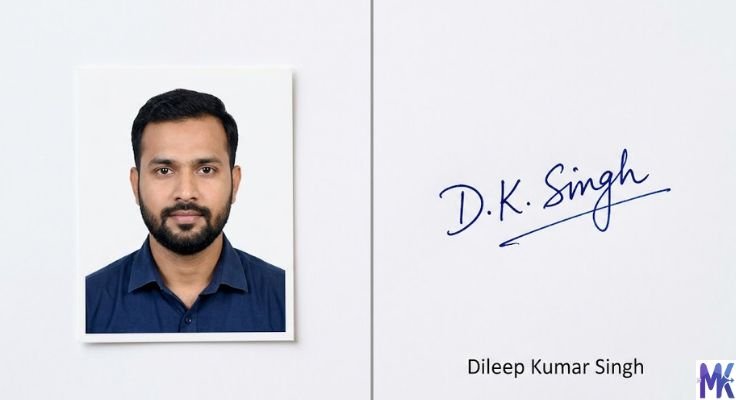
Signature Image
Your handwritten signature scanned or photographed cleanly. Requirements typically include:
- Signed on plain white paper with black or blue ink
- No stray marks or smudges around the signature
- Format: JPG or JPEG
- File size: Usually 10KB to 30KB
- Dimensions: Commonly 140×60 pixels
Both images need to be compressed separately to their respective size limits. However, with a bulk compression tool, you can handle both at the same time more on that in a moment.
Common Job Portal Image Requirements at a Glance
| Portal | Photo Size | Signature Size | Format |
| SSC (Staff Selection Commission) | 20KB – 50KB | 10KB – 20KB | JPG |
| UPSC (Civil Services) | 40KB – 300KB | 40KB – 300KB | JPG |
| Indian Railways (RRB) | 20KB – 50KB | 10KB – 40KB | JPG |
| State PSC Portals | 20KB – 100KB | 10KB – 50KB | JPG |
| Bank Recruitment (IBPS, SBI) | 20KB – 50KB | 10KB – 20KB | JPG |
| Private Company Portals | 100KB – 500KB | Not always required | JPG or PNG |
| LinkedIn / Naukri Profiles | Under 8MB | Not required | JPG or PNG |
Always read the official notification or instructions page of the specific portal before uploading. These requirements can change between recruitment cycles.
Which Image Format Should You Use?
This is where many applicants make a mistake. They use the wrong format and get confused when the portal rejects their file.
Here is the straightforward answer:
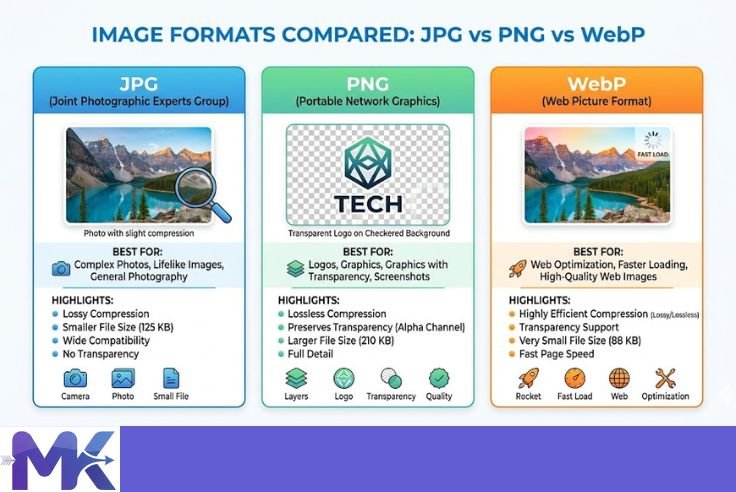
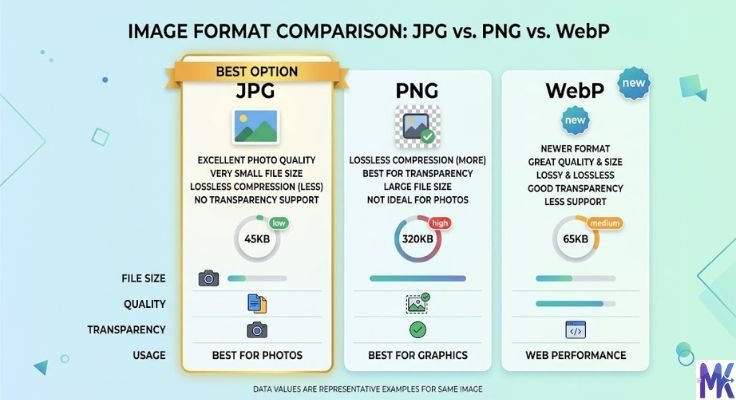
Use JPG for everything — photo and signature both.
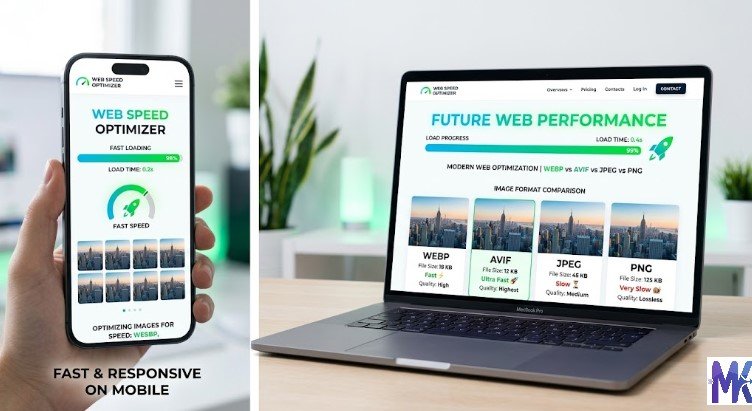
JPG is accepted by every major job portal in India and internationally. It compresses efficiently, keeps colors accurate, and produces small file sizes without visible quality loss.
Avoid PNG. A passport photo saved as PNG can be 1MB to 3MB far above what any job portal allows. PNG is not the right format for job application photos.
Avoid WebP. It is excellent for websites but most recruitment portals do not support it. Uploading a WebP file will likely result in a format error.
Avoid PDF for photos. Some portals accept PDFs for certificates and documents, but your photograph and signature should always be in JPG.
How to Take a Good Photo for a Job Application
Before you compress anything, you need a good quality photo to start with. Compression reduces file size it cannot fix a blurry or poorly lit photo.
Lighting Natural daylight is your best option. Sit or stand near a window. Avoid harsh overhead lights that create shadows on your face. Avoid dim rooms that make the image grainy.
Background Use a plain white wall or hang a white bedsheet behind you. Most job portals specifically require a white or off-white background. A coloured or cluttered background is grounds for rejection.
Camera Use the rear camera on your smartphone it is significantly sharper than the front selfie camera. If someone can take the photo for you, even better. A tripod or phone stand also helps keep the image stable.
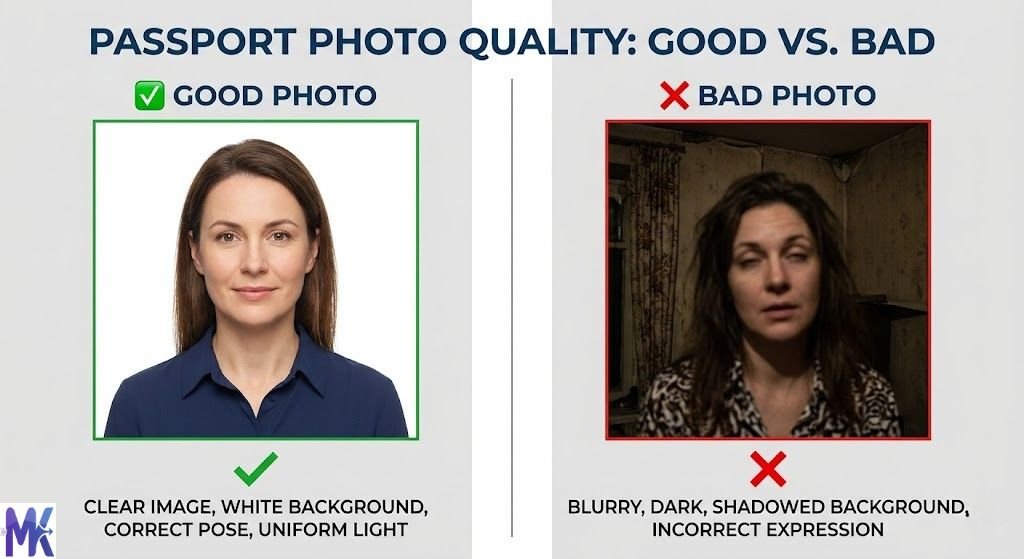
Pose and Expression Look directly at the camera lens. Keep a neutral or slight smile — avoid grinning widely. Make sure your full face is visible. No sunglasses, no hats, no heavy makeup that changes your appearance significantly.
Take Multiple Shots Take at least 5 photos and choose the sharpest, most evenly lit one. Delete the rest. A small effort here makes the rest of the process easier.
How to Take a Good Signature Image
Your signature image is just as important as your photo on most government job portals.
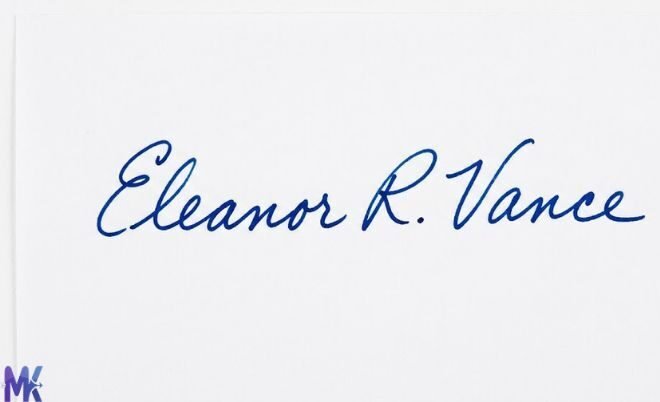
Paper and Pen Sign on plain white A4 or A5 paper. Use a black or dark blue ballpoint pen. Avoid gel pens that smear or pencils that look faint.
Signing Write your full signature the same one you use on official documents. Make sure it is clear, consistent, and not rushed. Leave some white space around it.
Photographing Place the paper flat on a table. Hold your phone directly above it, as level as possible. Make sure there is enough light a well-lit room or natural daylight works well. Avoid shadows falling across the paper.
Cropping After taking the photo, crop tightly around the signature. Remove excess white space above and below, but leave a small margin. This reduces file size and gives a cleaner result.
Step-by-Step: How to Compress Images for Job Applications
Now the main part. Here is the complete process from start to finish.
Step 1 — Read the Portal’s Requirements
Open the official notification or the application form instructions. Note down exactly:
- Required format (JPG in almost all cases)
- Maximum file size for photo (e.g., 50KB)
- Maximum file size for signature (e.g., 20KB)
- Required dimensions in pixels (e.g., 200×230 for photo, 140×60 for signature)
Write these down. You will need them in the next steps.
Step 2 — Check Your Current Image Sizes
Before compressing, know your starting point.
Windows: Right-click the image → Properties → General → Size
Mac: Right-click → Get Info → Size
Android: Gallery → tap image → three dots → Details
iPhone: Open image in Photos → swipe up → File info (or use the Files app)
Now you know how far you need to compress.
Step 3 — Open mbtokb.site
Go to mbtokb.site in your browser. Works on any device phone, tablet, or computer. No sign-up, no installation.
Step 4 — Upload Both Images at Once
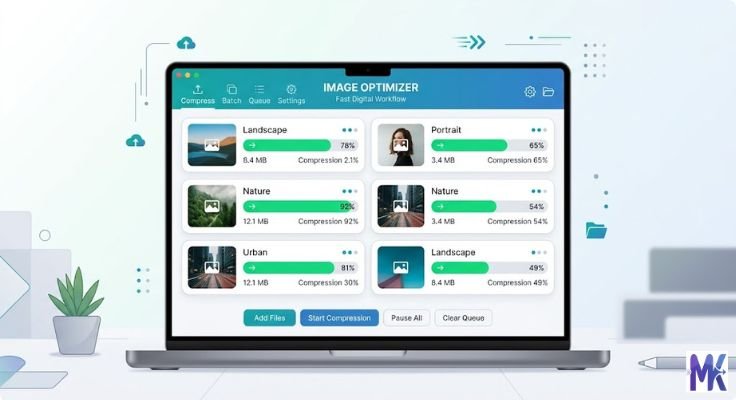
Click the upload button and select both your passport photo and signature image at the same time. mbtokb.site supports bulk uploads you do not have to compress them one by one.
This is a significant time saver, especially when you are applying to multiple portals that require the same images.

Step 5 — Set Your Target Size
Custom Size Option: Enter the exact target size in KB for example, type 40 for 40KB or 15 for 15KB. The tool compresses each image as close to that size as possible.

Since your photo and signature have different size limits, you can process them separately with different target sizes upload the photo, compress to 40KB, download. Then upload the signature, compress to 15KB, download.
Fixed Size Option: If you want a quick one-click option without entering numbers, choose from the preset sizes:
For most government job portals, compressing your photo to 50KB and your signature to 10KB or 20KB covers the majority of requirements.
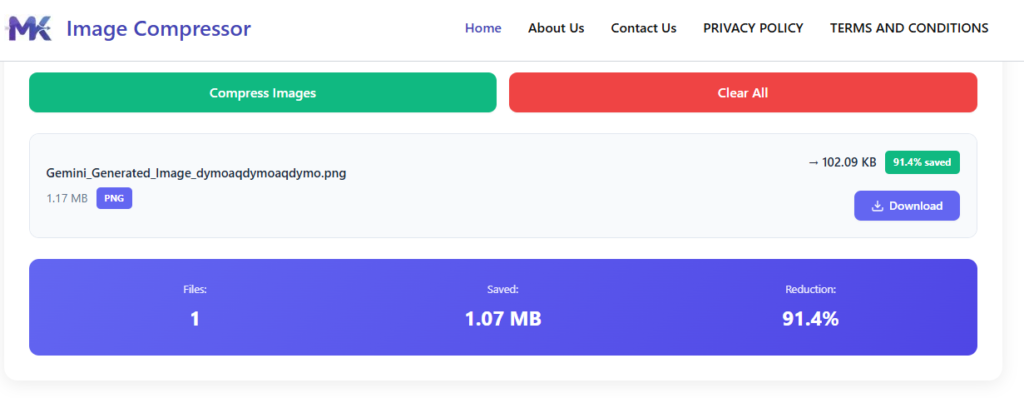
Step 6 — Compress and Download
Click the Compress button. Processing happens in seconds everything runs in your browser, so it is fast even on a slow internet connection.
Download each compressed image individually with one click, or download all images together in bulk. Both files are now ready to upload to your job application portal.
Step 7 — Verify Before Uploading
Open the compressed images and take a quick look.
For the photo: Is your face clearly visible? Is the image sharp? Is the background white?
For the signature: Is the signature readable? Are there any dark smudges or marks around it?
If everything looks good you are ready to upload.
Compressing Multiple Applications at Once
Here is something most people do not think about until they are in the middle of it: if you are applying to multiple job portals at the same time, you need the same images compressed to different sizes for each portal.
SSC might need your photo at 50KB. IBPS might need it at 50KB but with different dimensions. A state PSC might need it at 100KB.
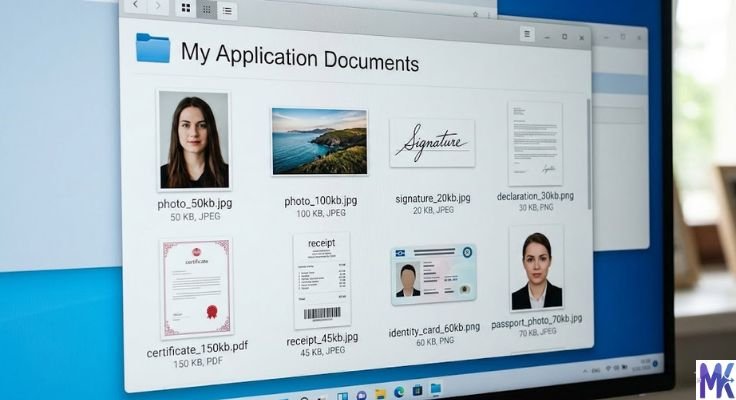
With mbtokb.site, you can upload your images and quickly compress them to different target sizes downloading a separate version for each portal. The bulk upload feature means you can handle multiple images at once, and the custom size option means you can hit any target precisely.
Keep a folder on your device with versions of your photo at 20KB, 50KB, and 100KB. That covers almost every portal you will encounter.
What If the Portal Rejects Your Image Even After Compression?
This happens sometimes and it is usually not the file size causing the problem.
Wrong format Double-check that the file is saved as JPG, not PNG or WebP. Some portals check the file extension and reject anything that is not JPG.
Wrong dimensions Even if the file size is within limits, wrong pixel dimensions cause rejection. If the portal needs 200×230 pixels and your image is 400×400, it may be rejected. Resize first using any photo editing app, then compress.
Photo quality issues Blurry, dark, or poorly cropped photos may be flagged during manual review. If your image looks blurry after compression, compress to a slightly higher size try 80KB instead of 40KB.
Signature issues If the background of your signature image is not clean white, or if there are smudges and extra marks visible, the portal or reviewing officer may reject it. Retake the signature photo with better lighting.
File name problems Rename your file to something clean like photo.jpg or signature.jpg. Some portals reject files with spaces, brackets, or special characters in the name.
Browser or cache issues If everything looks correct but the upload still fails, try clearing your browser cache or switching to a different browser like Chrome or Firefox.
Saving Your Images for Future Applications
Once you have compressed and verified your images, save them properly for future use. Job applications are not a one-time thing you will likely apply to multiple positions over time.
Create a dedicated folder on your phone or computer called something like Job Application Images. Inside it, save:
- photo_50kb.jpg — your passport photo compressed to 50KB
- photo_100kb.jpg — same photo compressed to 100KB
- signature_20kb.jpg — your signature compressed to 20KB
- signature_10kb.jpg — same signature compressed to 10KB
Having these ready means next time you start a new application, you spend zero time on image compression. Just pick the right file for the portal’s requirement and upload.
Frequently Asked Questions
For most government portals in India SSC, Railways, UPSC, IBPS 20KB to 50KB covers almost all requirements. When in doubt, compress to 40KB. It passes the majority of portals and stays visually clear.
Yes. mbtokb.site supports bulk uploads. Select both images at once, compress them together, and download each individually.
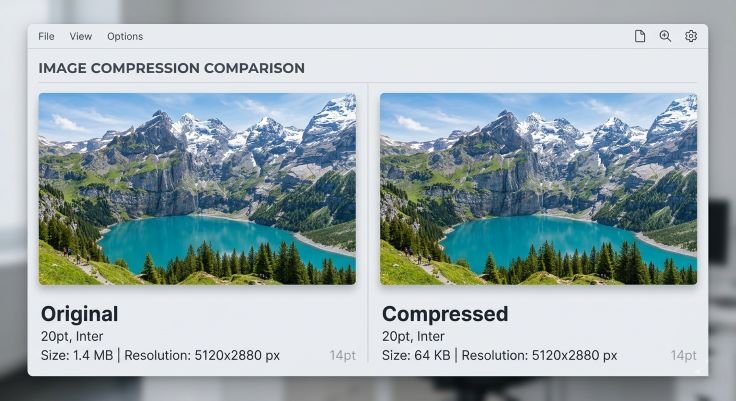
No, not at the sizes typically required for job applications. Compressing a 3MB photo to 50KB reduces the file size dramatically but the visible quality remains clear and sharp. Only extreme compression to 5KB or 10KB will cause noticeable blur.
On mbtokb.site, all compression happens in your browser. Your images are never sent to a server or stored online. They stay on your device the entire time.
Yes. mbtokb.site works on any phone browser — Android or iPhone. No app needed.
File size and dimensions are separate things. Use a photo editing app or the crop/resize tool in your phone’s gallery to set the correct pixel dimensions first. Then compress the resized image using mbtokb.site.
Conclusion
A file size error should never be the reason your job application fails. Now you know exactly how to handle it.
Read the portal’s requirements. Take a clear photo and a clean signature scan. Open mbtokb.site, upload both images at once, set your target size whether that is 20KB, 50KB, or anything in between and download your compressed files in seconds.
Everything runs in your browser. Nothing is stored online. Your images stay private on your device.
The next time you open a job application portal and see a strict file size limit, you will know it is a two-minute problem with a simple solution.