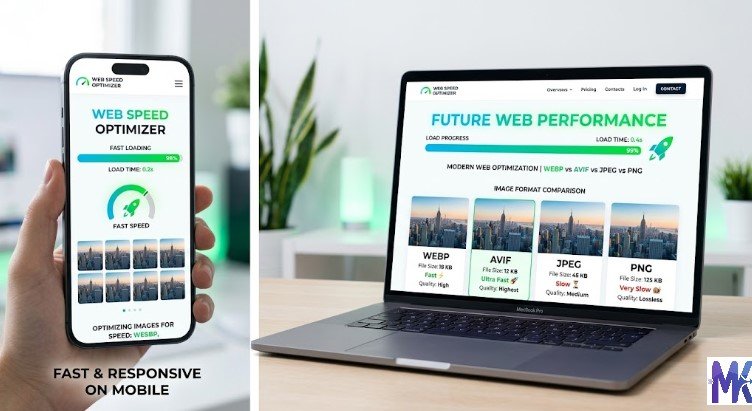
You click “Save Image” and suddenly you’re staring at three options: JPG, PNG, WebP.
Which one do you pick? Does it even matter?
It matters a lot more than most people realize. The image format you choose affects how your images look, how fast your website loads, and how much storage space your files take up.
The wrong format can make a sharp logo look blurry. Or turn a small photo into a massive file that slows your whole website down.
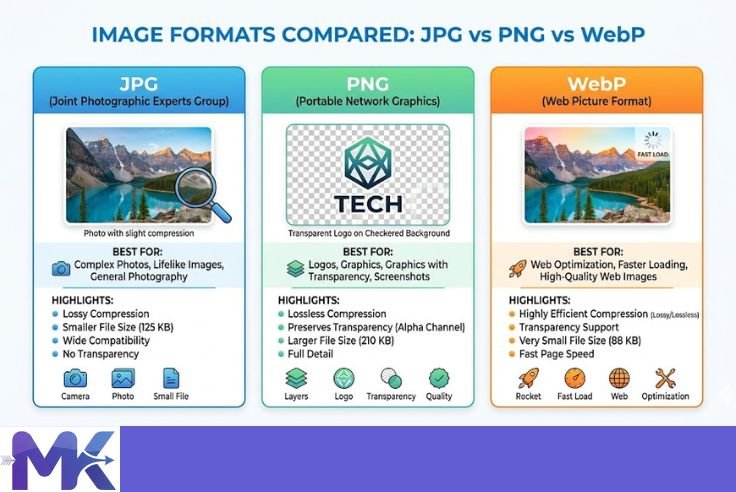
In this guide, we’ll break down JPG vs PNG vs WebP in plain, simple language. No tech talk. Just clear explanations, easy examples, and practical advice so you can always pick the right format every single time.
What Is an Image Format?
Before we compare, let’s quickly understand what an image format actually is.
When you take a photo or create a graphic, your device has to save that image somewhere. An image format is simply the method used to store and organize that image data.
Different formats store data in different ways. Some focus on keeping quality perfect. Others focus on making the file as small as possible. Some do both but with tradeoffs.
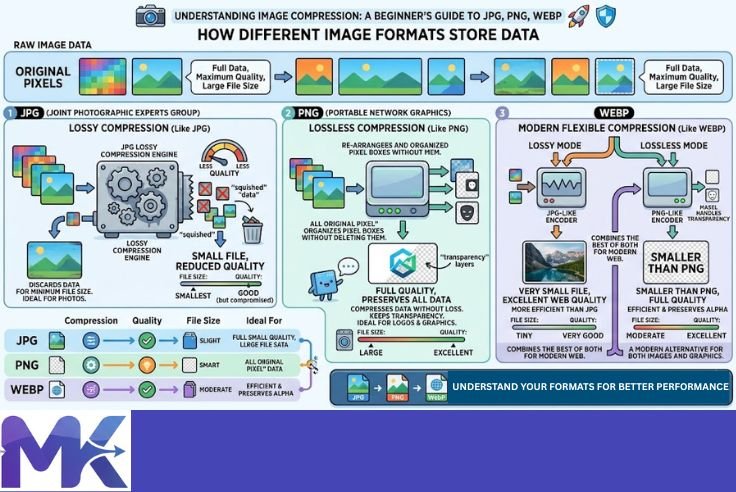
Think of it like packaging. You can ship a fragile vase in a small box with no padding (risky, small), or in a large box with lots of bubble wrap (safe, but bulky). The format you choose is how you “package” your image.
JPG, PNG, and WebP are three of the most popular formats today and each one has a very different job.
What Is JPG (or JPEG)?
JPG stands for Joint Photographic Experts Group the team that created this format back in 1992. You’ll also see it written as JPEG. Both mean the exact same thing.
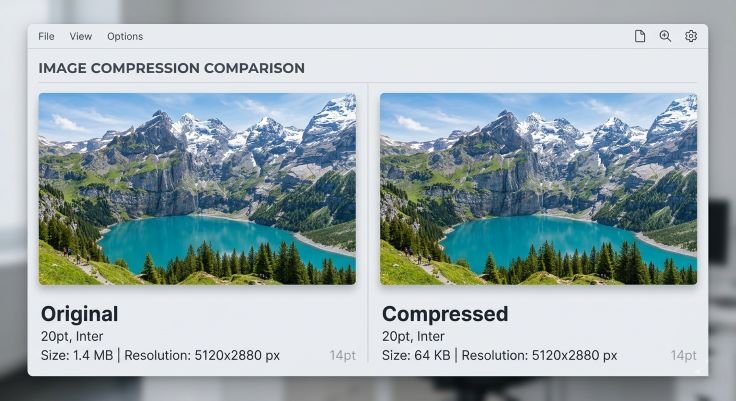
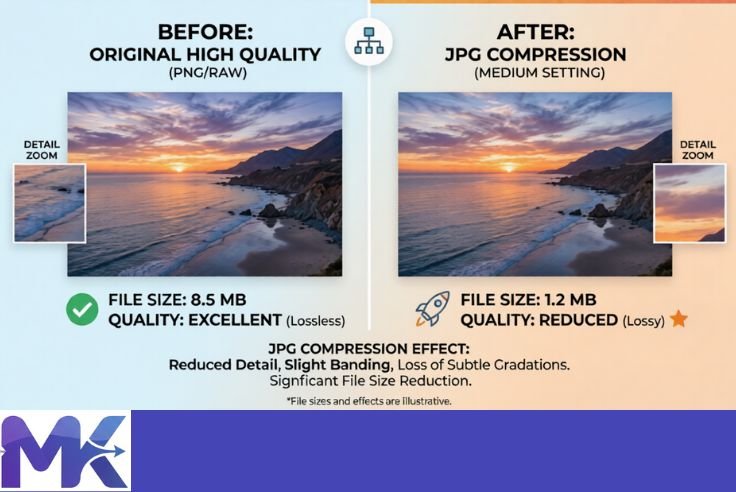
JPG was designed specifically for photographs. It uses lossy compression, which means it removes some image data to shrink the file size. The removed data is usually details your eyes can’t easily notice so the image still looks great, just in a much smaller file.
A real-life example: Imagine you took a photo of a sunset. The sky has thousands of slightly different shades of orange and pink. JPG looks at all those tiny differences and says, “These 50 shades of orange are close enough I’ll just use 10.” The result? A smaller file, and a sky that still looks beautiful.
When to Use JPG
- Blog post photos
- Product images on e-commerce websites
- Social media images
- Portfolio photography
- Any image with lots of colors and gradients
Pros of JPG
- Very small file sizes
- Supported by every browser, device, and platform
- Great for photographs and complex images
- Easy to share and upload
Cons of JPG
- Loses quality every time you save it (every edit = more data loss)
- Not good for images with text, sharp edges, or flat colors
- Does not support transparent backgrounds
What Is PNG?
PNG stands for Portable Network Graphics. It was created in 1996 as a better alternative to an older format called GIF.
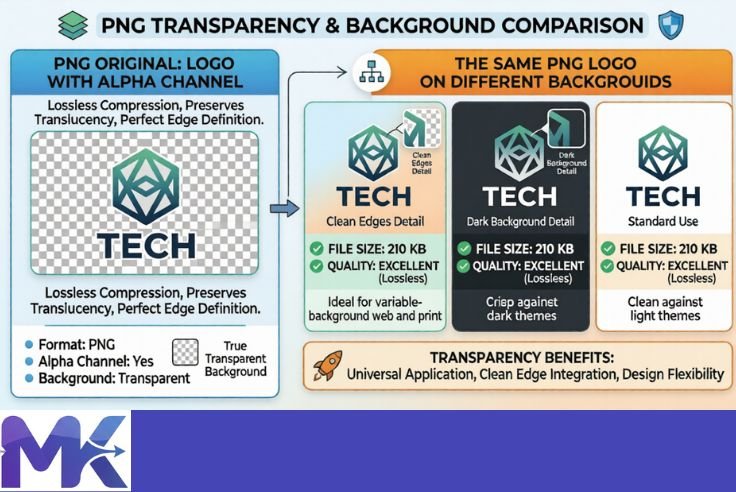
Unlike JPG, PNG uses lossless compression. This means it reduces file size without throwing away any image data. Every pixel is saved exactly as it was no quality loss, ever.
The trade-off is that PNG files are usually larger than JPG files. But what you get in return is pixel-perfect quality and most importantly support for transparent backgrounds.
A real-life example: Imagine your company logo on a white background. If you save it as JPG and place it on a blue website, you’ll see an ugly white box around it. Save it as PNG instead, and the background disappears completely your logo floats perfectly on any background, clean and professional.
When to Use PNG
- Logos and brand graphics
- Icons and illustrations
- Screenshots Images with text overlaid
- Any image that needs a transparent background
Pros of PNG
- Zero quality loss perfect sharpness every time
- Supports transparent backgrounds
- Great for flat colors, lines, and text
- Can be edited and re-saved without degrading
H3: Cons of PNG
- Larger file sizes than JPG
- Not the best choice for photos (unnecessarily large)
- Can slow down websites if overused
What Is WebP?
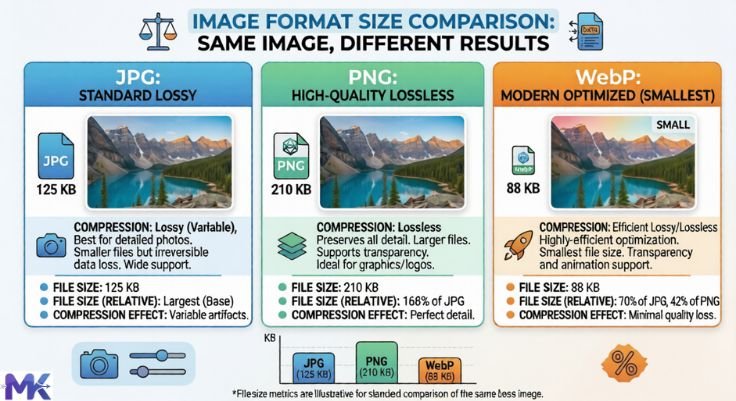
WebP is the newest of the three. It was created by Google in 2010 and designed to be the best of both worlds small file sizes AND great quality.
WebP supports both lossy and lossless compression. This means it can handle photos (like JPG) and graphics with transparency (like PNG) but in smaller files than either one.
A real-life example: Take a photo that’s 500KB as a JPG. Convert it to WebP and it might shrink to 300KB with the same or even better visual quality. That’s a 40% reduction for free.
When to Use WebP
- Website images where speed is a priority
- Modern web applications
- Any image where you want the best quality-to-size ratio
- Replacing both JPG and PNG on websites
Pros of WebP
- Smaller file sizes than JPG and PNG
- Supports transparency (like PNG)
- Supports animation (like GIF, but smaller)
- Both lossy and lossless compression available
- Excellent for website performance and SEO
Cons of WebP
- Not supported by some older software and apps
- Some older browsers (especially Internet Explorer) don’t support it
- Less widely used in non-web contexts like print or desktop editing
JPG vs PNG vs WebP — Side-by-Side Comparison
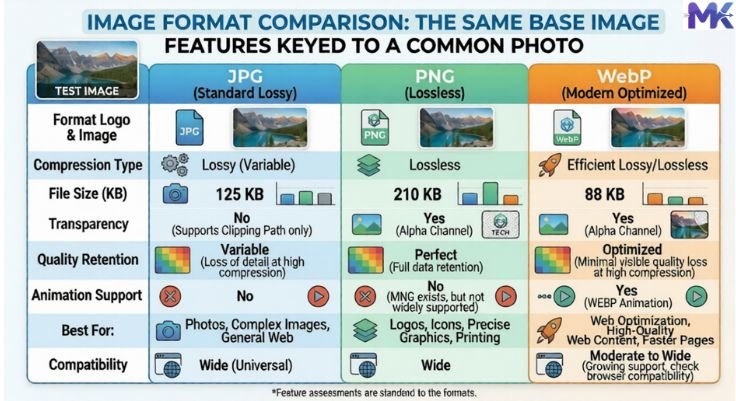
Let’s put all three formats next to each other so you can see the differences at a glance.
| Feature | JPG | PNG | WebP |
|---|---|---|---|
| Compression Type | Lossy | Lossless | Both |
| File Size | Small | Large | Smallest |
| Image Quality | Good | Perfect | Excellent |
| Transparency | No | Yes | Yes |
| Best For | Photos | Logos, Graphics | Websites |
| Browser Support | Universal | Universal | Modern browsers |
| Animation Support | No | No | Yes |
The verdict? JPG for photos, PNG for graphics, WebP when you want the best of everything on a website.
A Simple Way to Remember Which Format to Use
Still confused? Here’s an easy trick to remember:
If it’s a PHOTO → use JPG
“J for Journal” — like a photo journal. Real-world shots, portraits, landscapes.
If it has a TRANSPARENT background or SHARP EDGES → use PNG
“P for Precise” — logos, icons, text graphics where every pixel matters.
If it’s going on a WEBSITE → use WebP
“W for Web” — modern, fast, and built for the internet.
That’s really all you need to remember.
How File Format Affects File Size — Real Numbers
Let’s look at a realistic example.
Say you have a product photo 1200 × 800 pixels of a pair of sneakers.
- Saved as PNG (lossless): approximately 1.2MB
- Saved as JPG (medium quality): approximately 180KB
- Saved as WebP (lossy): approximately 120KB
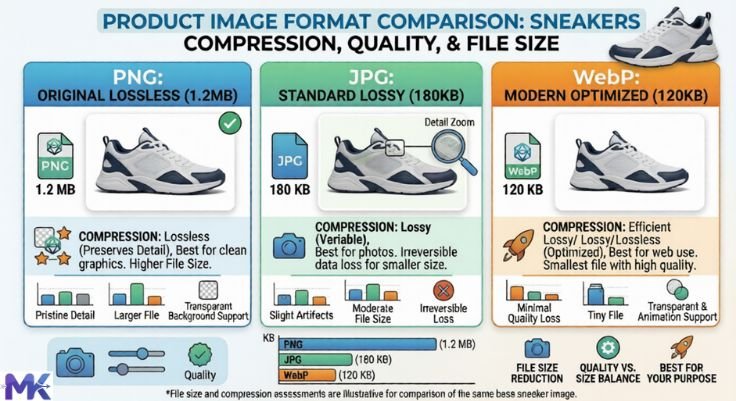
That’s a huge difference. If your online store has 100 product images, that’s the difference between 120MB of images and 12MB. Your website will load ten times faster with the right format.
This is exactly why format choice matters not just for quality, but for speed and user experience.
Which Format Is Best for SEO?
Google cares about page speed. Slow websites rank lower. Fast websites rank higher. It’s that simple.
Images are often the heaviest files on a webpage. So choosing a smaller format directly improves your page load time and your SEO.
Here’s how each format stacks up for SEO:
JPG is decent. It keeps photos small and loads quickly. However, WebP does it even better.
PNG can hurt your SEO if overused. A PNG photo is often 5–10x larger than the same image in JPG or WebP. Use PNG only when transparency or sharpness is truly needed.
WebP is the best choice for SEO. Smaller files, same quality. Google itself recommends WebP for web images. If you want to rank higher and load faster, switching to WebP is one of the smartest moves you can make.
Can You Convert Between Formats?
Yes — and it’s easier than you think.
JPG to WebP: Reduces file size further. Great for speeding up a website.
PNG to WebP: Keeps transparency, reduces file size. Best of both worlds.
WebP to JPG or PNG: Useful when you need compatibility with older software.
The key thing to remember: every time you convert from a lossless format (PNG) to a lossy one (JPG or WebP lossy), you lose a small amount of quality. So always keep the original file and convert copies.
How to Compress JPG, PNG, and WebP Files Online
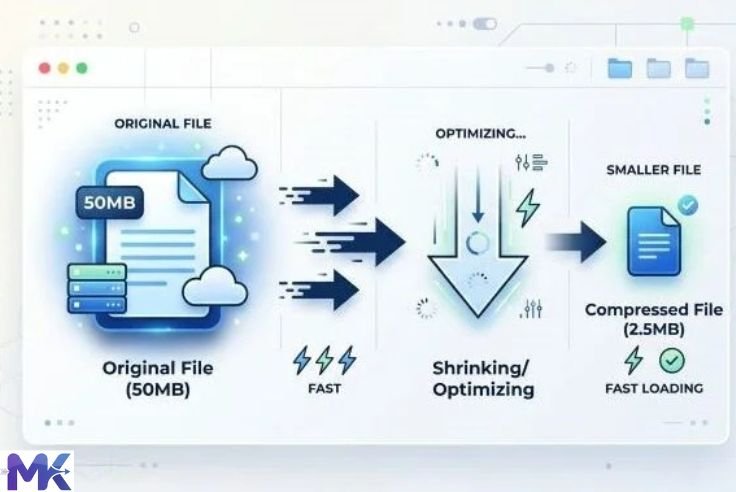
Knowing the right format is step one. But even the right format can produce large files especially high-resolution images or bulk uploads.
That’s where compression tools come in.
At mbtokb.site, you can compress JPG, PNG, and WebP images all three formats completely free, right in your browser. Whether you have one image or a hundred, the tool handles them all.
Bulk Compression — Upload Multiple Images at Once
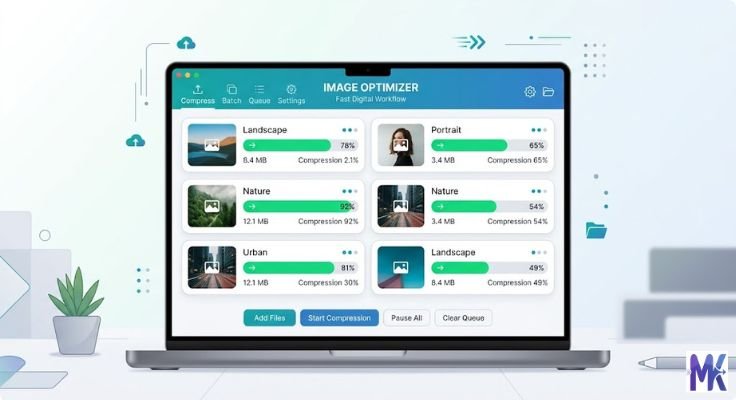
One of the biggest advantages of https://mbtokb.site is bulk compression. You don’t have to compress images one by one.
Just upload multiple images at once whether they’re JPG, PNG, or WebP and compress them all with a single click. This saves a huge amount of time, especially for:
- E-commerce stores with dozens of product images
- Photographers delivering a batch of edited photos
- Bloggers optimizing multiple post images at once
- Developers preparing assets for a website launch
Compress to a Specific Size
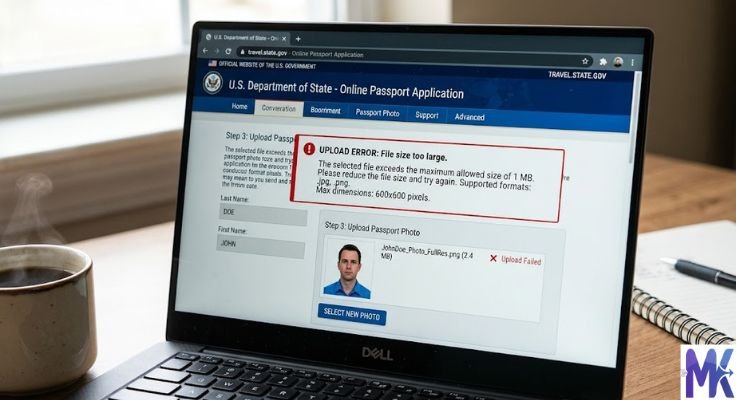
Need your image to be under 100KB? Or exactly 150KB for an online form?
mbtokb.site lets you enter a custom target size just type in the number and the tool does the rest. It compresses your image as close to that size as possible, regardless of whether it’s a JPG, PNG, or WebP.
Fixed Size Compression Options
Don’t want to do any math? Pick from ready-made options:
- Compress to 10KB
- Compress to 50KB
- Compress to 100KB
- Compress to 150KB
- Compress to 200KB
- Compress to 250KB
- Compress to 300KB
- Compress to 350KB
One click. Done. No settings to adjust.
Privacy-Friendly and Browser-Based
Your images never leave your device. Everything is processed locally in your browser nothing is uploaded to a server or stored anywhere. Your files stay completely private.
Common Mistakes People Make with Image Formats
Let’s look at a few mistakes that are very easy to avoid once you know the basics.
Mistake 1: Using PNG for All Photos
PNG is great for graphics, but terrible for photos in terms of file size. A photo saved as PNG can be 5–10x larger than the same photo in JPG or WebP. This slows down websites massively.
Mistake 2: Using JPG for Logos
JPG compresses by blending colors together. This makes sharp edges (like the clean lines in a logo) look blurry and jagged. Always use PNG or WebP for logos and icons.
Mistake 3: Ignoring WebP Completely
Many people have never heard of WebP and stick to JPG and PNG out of habit. But WebP consistently produces smaller files with equal or better quality. If your website is loading slowly, switching to WebP images could be the fastest fix.
Mistake 4: Not Compressing Images at All
Even the right format won’t help if the image isn’t compressed. A high-resolution JPG photo can still be 3–5MB. Always compress images before publishing them online.
JPG vs PNG vs WebP — Quick Decision Guide
Here’s a simple guide to help you decide in under 10 seconds:
Is it a photograph? → JPG or WebP
Does it need a transparent background? → PNG or WebP
Is it a logo or icon? → PNG
Is it going on a website? → WebP (first choice)
Does the platform not support WebP? → JPG for photos, PNG for graphics
Do you need to compress multiple images at once? → https://mbtokb.site
Conclusion
So, JPG vs PNG vs WebP which one wins?
Honestly, there’s no single winner. Each format has its place:
JPG is reliable and universal, perfect for photos and anything with lots of colors.
PNG is precise and clean, ideal for logos, graphics, and transparent backgrounds.
WebP is modern and efficient, the best all-around choice for websites and online use.
The smartest approach is to use each format for the right job and then compress your images before publishing. Smaller files mean faster pages, happier visitors, and better search rankings.
And if you need to compress JPG, PNG, or WebP images individually or in bulk https://mbtokb.site has you covered. Upload multiple images at once, choose your target size, and download compressed files in seconds. No sign-up, no software, no fuss.