You want to send a few photos over email. Simple enough.
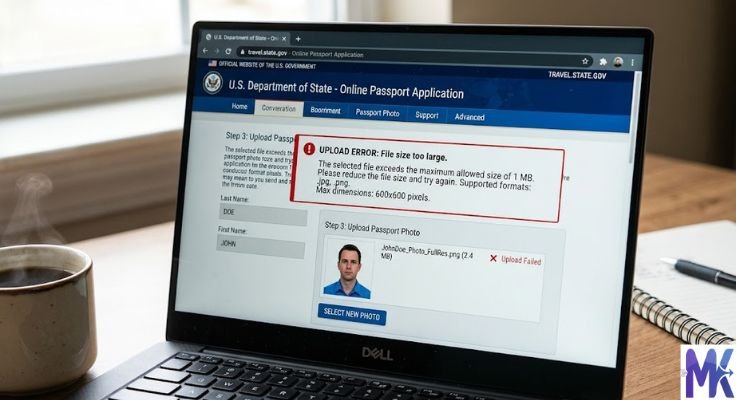
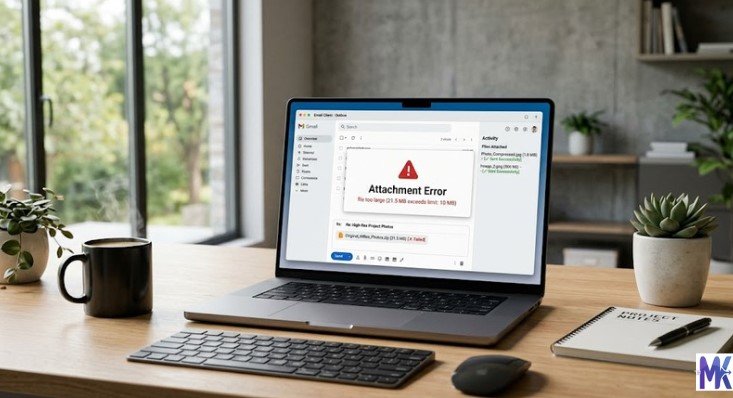
You attach them, hit send and nothing happens. Or you get a bounce-back message saying the attachment is too large. Or worse, the email goes through but the recipient cannot open it because their inbox is full from your massive files.
Sound familiar?
This is one of the most common frustrations people run into with email. Modern phone cameras produce stunning photos but those photos are often 4MB to 8MB each. Most email providers cap attachments at 10MB to 25MB total. Attach three or four photos and you have already hit the limit.
The solution is straightforward: compress your images before attaching them.
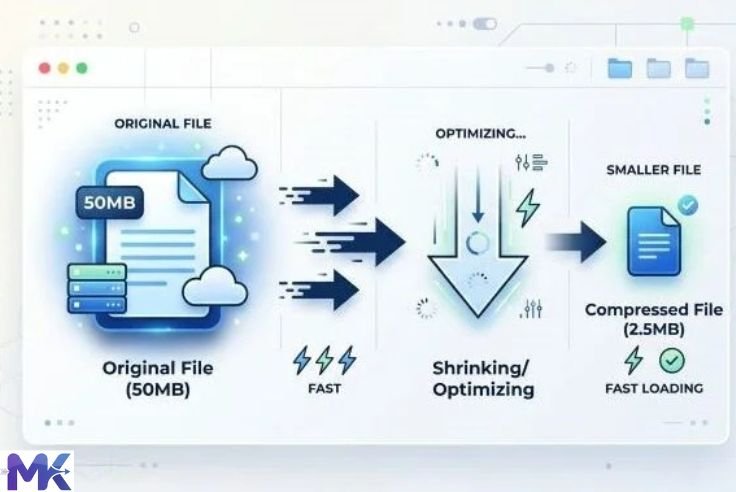
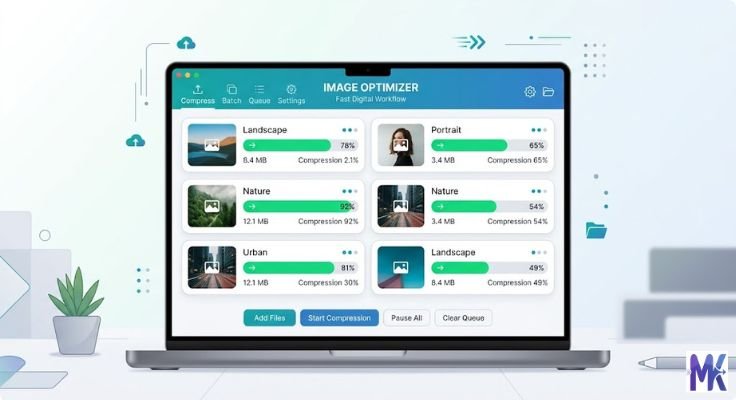
Image compression for email attachments reduces file sizes dramatically often by 80% to 95% while keeping photos looking sharp and clear on the recipient’s screen. The result is emails that send instantly, arrive without errors, and open smoothly on any device.
This guide covers everything you need to know why email size limits exist, how to compress images correctly, what sizes to target, and how to do it all for free in under a minute.
Why Email Providers Have Attachment Size Limits
Every email you send travels through servers yours, your provider’s, and your recipient’s. All of these systems have finite storage and processing capacity.
Large attachments create problems at every step:
Server Load When millions of users send large files simultaneously, email servers get overwhelmed. Size limits keep the system manageable and fast for everyone.
Recipient Inbox Storage Gmail gives users 15GB of storage shared across Gmail, Drive, and Photos. Outlook gives 15GB for email. If someone receives dozens of emails with large attachments, their inbox fills up quickly. Many providers automatically block incoming emails that would push a mailbox over its limit.
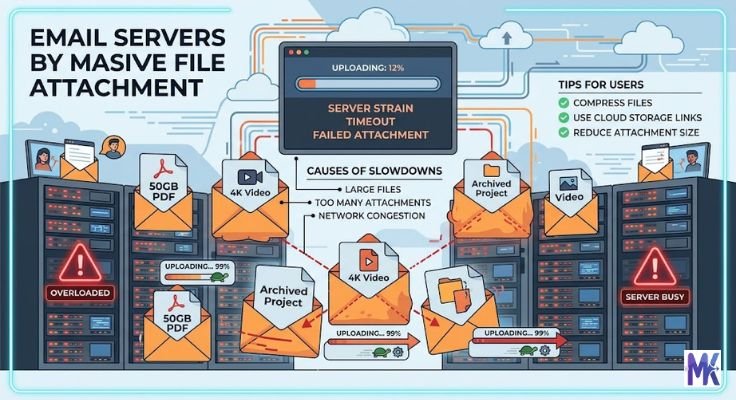
Delivery Speed Large attachments take longer to upload when sending and longer to download when receiving. On slow connections mobile data, older networks, rural broadband a 20MB attachment can take minutes to send and receive.
Spam Filters Many email spam filters flag messages with unusually large attachments as suspicious. Your carefully composed email might end up in the recipient’s spam folder simply because the images were too heavy.
Compressing images before attaching them solves all four of these problems at once.
Email Attachment Size Limits by Provider
Knowing the limits helps you set the right compression target.
| Email Provider | Maximum Attachment Size |
| Gmail | 25MB per email |
| Outlook / Hotmail | 20MB per email |
| Yahoo Mail | 25MB per email |
| Apple Mail (iCloud) | 20MB (larger files sent via Mail Drop) |
| ProtonMail | 25MB per email |
| Corporate / Business Email | Usually 10MB to 20MB (varies by IT policy) |
| Zoho Mail | 20MB per email |
These are the sending limits. But the receiving limits matter too and they are sometimes lower. A recipient on a corporate email system might only be able to receive attachments up to 10MB, even if you can send 25MB from your account.
The safest approach: keep your total attachment size under 10MB, ideally under 5MB. This ensures smooth delivery to virtually any email account on any system.
How Large Are Uncompressed Images?
Let us look at realistic file sizes from common sources so you understand the scale of the problem.
| Source | Typical File Size |
| Smartphone photo (standard) | 3MB to 6MB |
| Smartphone photo (high resolution / Pro mode) | 8MB to 25MB |
| DSLR or mirrorless camera photo | 15MB to 50MB |
| Screenshot on a laptop | 500KB to 3MB |
| Scanned document (high resolution) | 2MB to 10MB |
| WhatsApp received photo | 100KB to 500KB (already compressed) |
| Downloaded web image | 50KB to 500KB (usually already compressed) |
Now imagine you want to email five photos from your phone to a client or a family member. At 5MB each, that is 25MB already at Gmail’s limit before you even type the email body.
Compress those same five photos to 200KB each and the total drops to 1MB. They send instantly, arrive instantly, and open perfectly.
What Size Should Images Be for Email Attachments?
This depends on the purpose of the email and who is receiving the images.
Casual personal photos (family, friends) Target: 200KB to 500KB per image These look perfectly sharp on any phone or computer screen. Colour, detail, and faces are all clearly visible. Multiple photos can be sent without hitting any limit.
Professional or business photos Target: 300KB to 800KB per image Business context often means images might be viewed on larger monitors. A slightly higher quality is appropriate. Still well within any provider’s limits.
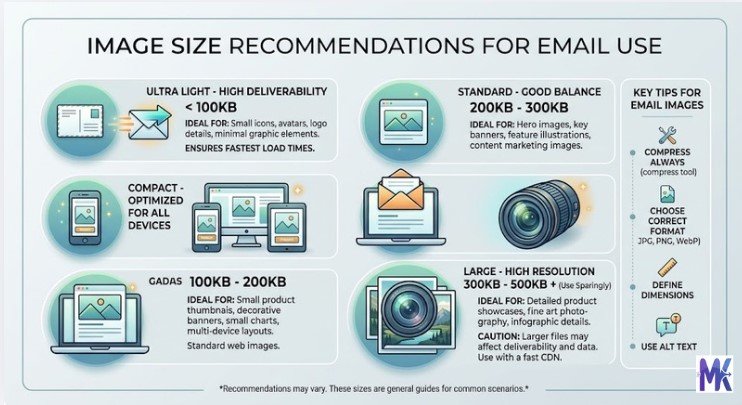
Product images for clients or customers Target: 500KB to 1MB per image If a client might print the image or use it for something professional, a higher quality is worth preserving. Even at 1MB, five images total only 5MB.
Thumbnails or reference images Target: 50KB to 150KB per image When you are sending reference images, mockups, or small previews where the recipient just needs to see the content not print it keep them small.
Images for official forms or applications sent by email Target: 50KB to 200KB per image Match the receiving organisation’s stated requirements. Government offices and institutions often have strict limits on what they will accept.
General safe target for any email image If you are not sure compress to around 200KB to 300KB. This works in virtually every email scenario.
Which Format Should You Use for Email Image Attachments?
Format matters for email just as much as it does for websites.
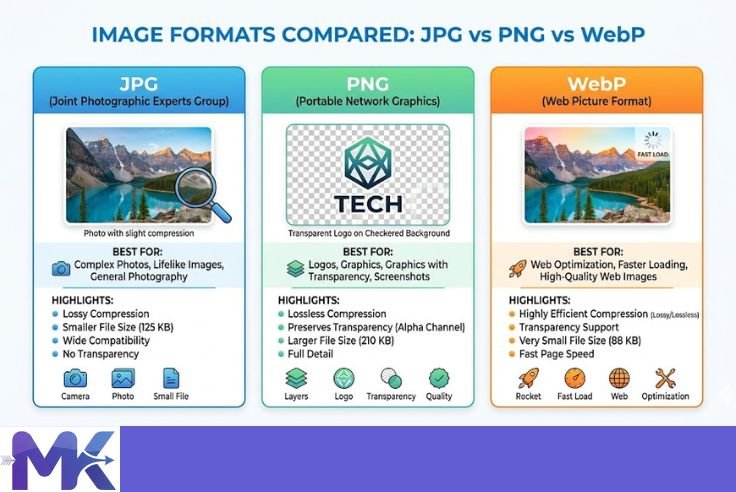
JPG — The Standard Choice for Photos
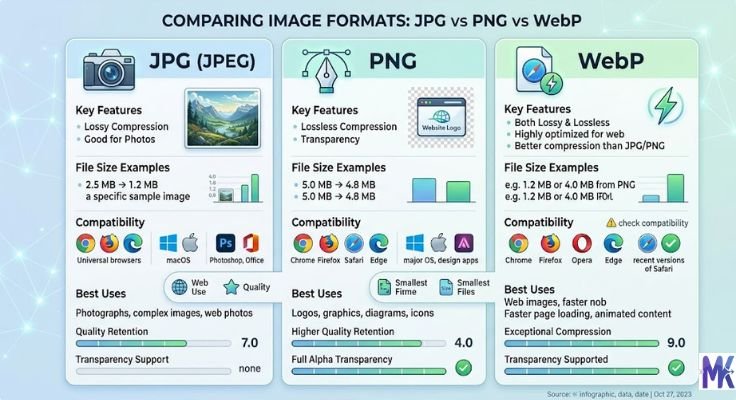
JPG is the right format for photographs sent by email. It is universally supported every email client, every device, every operating system can open a JPG without any issue.
JPG’s lossy compression keeps file sizes small while preserving visual quality effectively. A photo compressed to 200KB as a JPG looks great on any screen.
Use JPG when sending: personal photos, event photos, product shots, portraits, travel photos any image with complex colours and natural scenery.
PNG — Only When Transparency Matters
PNG produces larger files than JPG for photographs. If you send a PNG photo by email, the file might be 3 to 5 times larger than the JPG version of the same image for no visible benefit to the recipient.
Use PNG only when the image has a transparent background like a logo and the recipient specifically needs that transparency preserved.
WebP — Avoid for Email
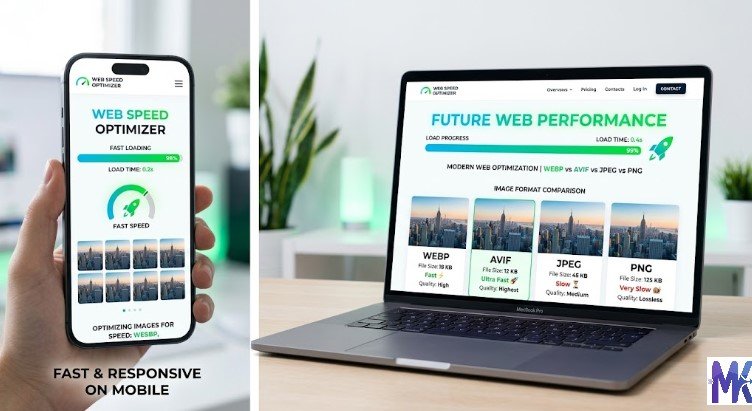
WebP is excellent for websites but not reliable for email. Many email clients particularly older versions of Outlook do not support WebP. The recipient might see a broken image or a file their device cannot open. Stick to JPG for email.
PDF — For Documents, Not Photos
If you are sending scanned documents, contracts, or text-heavy files, PDF is the right format. For photographs and images, use JPG.
Step-by-Step: How to Compress Images for Email Attachments
Here is the complete process from deciding to send images to hitting send with perfectly compressed attachments.
Step 1 — Decide How Many Images You Are Sending
Count the images you want to attach. Then do a quick mental calculation:
If each image is around 4MB and you want to send five of them, that is 20MB close to or over most email limits. You definitely need to compress.
If you have two images at 3MB each, that is 6MB probably fine for most providers, but still slower to send and receive than it needs to be. Compressing is still worth doing.
Step 2 — Check the Recipient’s Likely Limit
If you are emailing a business or government office, their email system may only accept attachments up to 10MB. Keep your total below that to be safe.
If you are emailing a friend or family member on Gmail or Outlook, you have more room but staying under 10MB total is still good practice.
Step 3 — Open mbtokb.site
Go to mbtokb.site in your browser. Works on any device Android, iPhone, Windows, Mac. No account, no installation.
Step 4 — Upload All Your Images at Once
Click the upload button and select all the images you want to compress at the same time. mbtokb.site supports bulk uploads you can compress every attachment in one go rather than doing them one by one.

This is particularly useful when you are sending a batch of photos event pictures, property photos, product shots where you might have 10, 20, or more images to compress.
Step 5 — Choose Your Target Size
Custom size option: Type in your target size in KB. For email attachments, 200 to 300 is a solid choice for most photos. For smaller reference images, try 100 or 150.

Fixed size option: Choose from the preset options:
- 50KB — for small reference images or thumbnails
- 100KB — for clear images with minimal file size
- 150KB — good balance for casual photos
- 200KB — recommended for most email photos
- 300KB — for slightly higher quality where it matters
- 350KB — for professional images where quality is important
Step 6 — Compress
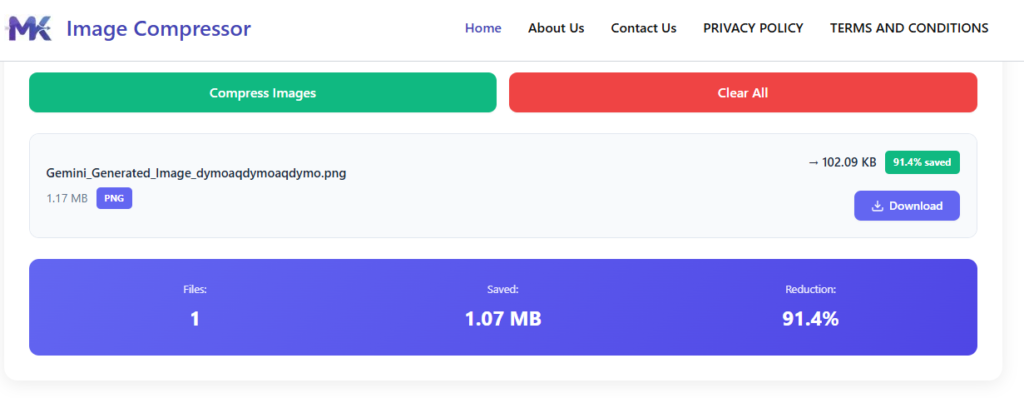
Click Compress. The tool processes all your images simultaneously in your browser. It takes a few seconds even for multiple images.
Step 7 — Download and Attach
Download all compressed images at once or individually, then attach them to your email as needed.
Check the total size of your attachments before sending. If you are using Gmail, it shows the attachment size as you add files. Keep the total under 10MB for maximum compatibility.
Compressing Images for Email on Different Devices
On a Computer (Windows or Mac)
The easiest method is mbtokb.site in your browser. Upload, compress, download, attach.
If you prefer built-in options:
Windows: Right-click the image → Send to → Mail recipient. Windows will offer to resize the image automatically. Choose “Medium” or “Small.” This is a quick fix but gives you less control over the exact output size.
Mac: Open the image in Preview → File → Export → choose JPG and reduce the Quality slider → save. Then check the file size and repeat if needed. Less precise than mbtokb.site but works without any additional tools.
For consistent, predictable results especially when you need a specific file size mbtokb.site is the better choice on both platforms.
On Android
Open mbtokb.site in Chrome on your Android phone. Tap the upload button, select your images from the gallery, choose your target size, compress, and download. The compressed files go to your Downloads folder. Open your email app, attach from Downloads, and send.
On iPhone
Open mbtokb.site in Safari. The process is the same — upload, compress, download. Files save to your Files app. When composing your email in Mail or Gmail, attach from Files rather than directly from Photos to access your compressed versions.
Alternatively, when you attach a photo directly in Apple Mail, iOS gives you the option to resize to Small, Medium, or Large before sending. This is a quick built-in option, though it gives you less control over the exact output size.
Sending Multiple Images — Bulk Compression Saves Time
If you regularly send batches of images by email event photos, real estate photos, product images, project progress shots compressing them one at a time is tedious and time-consuming.
mbtokb.site’s bulk compression feature solves this. Upload your entire batch at once, set one target size, and click compress—every image is processed simultaneously. Then download all images together or individually when done.
What might take 20 minutes doing images one at a time takes 2 minutes in bulk. And every image comes out at a consistent, email-friendly size.
This is especially useful for:
- Photographers delivering preview images to clients before the final edited set
- Real estate agents emailing property photos to buyers or colleagues
- Small business owners sending product images to suppliers or customers
- Event organisers sharing event photos with attendees or sponsors
- Anyone who regularly shares photos with friends and family
When Compression Is Not Enough — Alternatives for Very Large Files
Sometimes you need to send high-resolution images that even compressed versions would make too large for email. A photographer delivering a full wedding gallery, for example, might have 500 images even after compression.
In these cases, email is simply not the right tool. Use a file sharing service instead:
Google Drive: Upload images and share a link. The recipient downloads at their convenience. Free up to 15GB.
Dropbox: Similar to Google Drive. Free tier includes 2GB.
WeTransfer: Send up to 2GB for free without an account. Great for one-time large transfers.
iCloud Drive: If both sender and recipient use Apple devices, iCloud sharing is seamless.
For most everyday email scenarios though sending a few photos to a friend, attaching images to a business email, sharing event pictures compression is all you need.
Common Mistakes with Email Image Attachments
Attaching images straight from the camera Camera photos are optimised for printing, not emailing. They are far larger than necessary for screen viewing. Always compress before attaching.
Using PNG for photos PNG photographs are several times larger than JPG versions of the same image. For email, always use JPG for photos.
Forgetting to check the total attachment size Compressing individual images is good but also check the total. Five images at 500KB each is 2.5MB, which is fine. Twenty images at 500KB each is 10MB, which might cause problems for some recipients.
Sending the same full-resolution files every time If you send large images regularly, the habit of compressing first will save you significant time and frustration in the long run. Make it a routine.
Compressing already compressed images If you received a photo via WhatsApp or downloaded it from a website, it is likely already compressed. Compressing it again excessively will reduce quality without meaningful benefit. Check the file size first if it is already under 500KB, it is probably fine to attach as-is.
Frequently Asked Questions
Yes. mbtokb.site supports bulk uploads. Select all your images at once, set your target size, and compress everything together in one click.
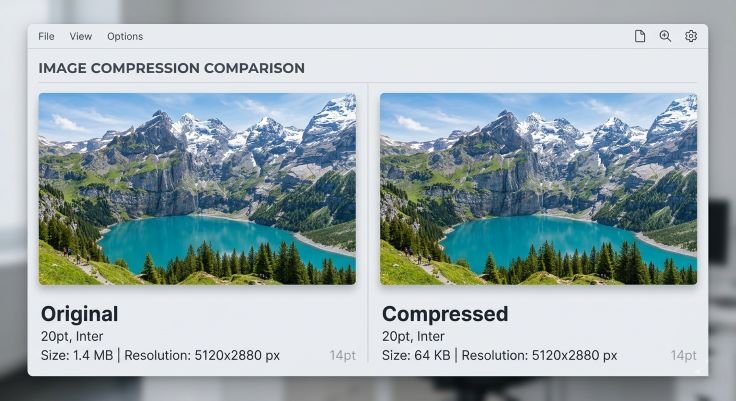
No, not at the sizes typically used for email. Compressing a phone photo from 5MB to 250KB produces an image that looks identical on any phone or computer screen. Quality loss only becomes visible at extreme compression levels far below what email requires.
For most purposes, 200KB to 300KB per image is ideal. It looks sharp on any screen, sends quickly, and keeps total attachment size manageable even when sending multiple images.
On mbtokb.site, all compression happens locally in your browser. Your images are never sent to any server or stored anywhere online. Your photos stay on your device throughout the entire process.
Check the total size of all attachments combined, not just individual files. If you are sending many images, even compressed ones can add up. Also check if the recipient’s email system has a lower limit than yours some corporate systems only accept 5MB or 10MB. Consider sending in multiple emails or using a file sharing link instead.
Yes. mbtokb.site works in any mobile browser on Android or iPhone. No app needed.
Conclusion
Image compression for email attachments is one of those small habits that makes a noticeable difference every time you use it.
Emails send faster. Attachments arrive without errors. Recipients can open your images immediately regardless of their device or connection speed. And you never get a bounce-back message about file size limits again.
The process is simple: before you attach images to an email, compress them first. Use JPG format. Target around 200KB to 300KB per image for most purposes. And if you have multiple images to compress, do them all at once.
mbtokb.site makes this fast and free. Upload all your images together, choose your target size, compress everything with one click, and download files ready to attach. Nothing is stored online. Nothing requires sign-up. Everything runs in your browser.
Send better emails. Start compressing your images first.