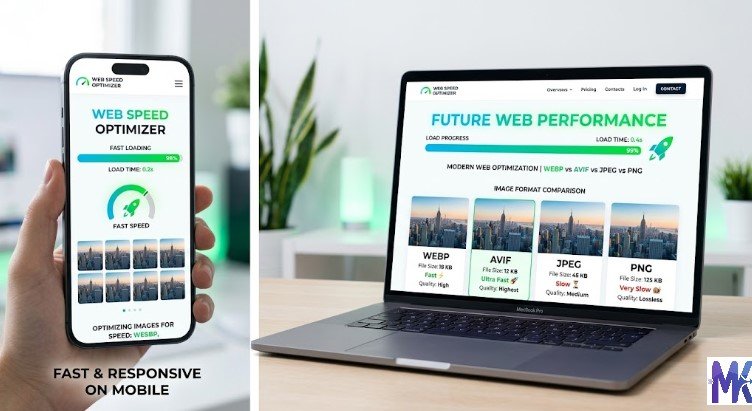
One image takes a minute to compress. Twenty images take twenty minutes if you do them one at a time.
Most people do not think about this until they are sitting in front of a folder full of photos, compressing and downloading each one individually, wondering why this is taking so long.
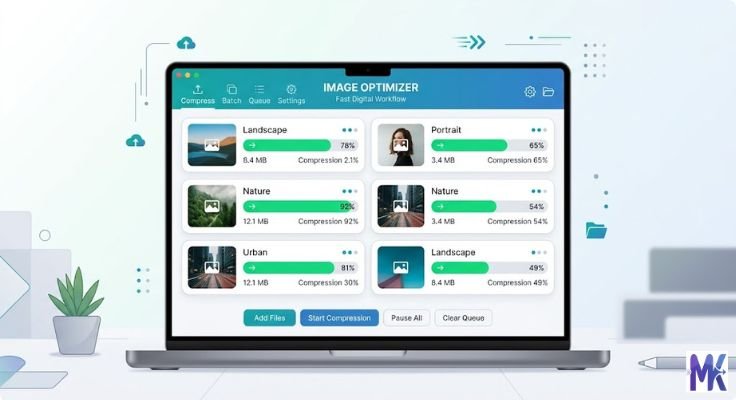
Whether you are a blogger preparing images for ten articles at once, an e-commerce store owner uploading product photos, a photographer delivering client images, or someone filling out multiple application forms bulk image compression changes everything.
Instead of repeating the same process dozens of times, you upload all your images at once, set your target size, click compress once, and download everything. Done.
This guide covers everything about bulk image compression why it matters, who needs it, how it works, what sizes to target for different use cases, and how to do it for free without installing any software.
What Is Bulk Image Compression?
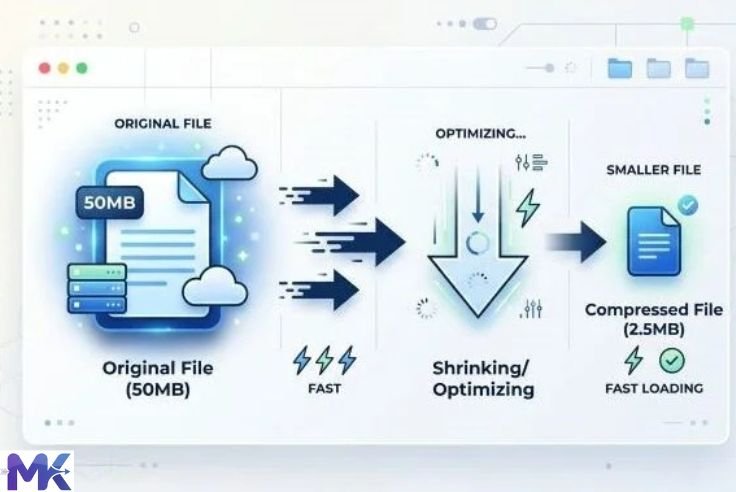
Bulk image compression is the process of compressing multiple images simultaneously in a single operation rather than compressing them one at a time.
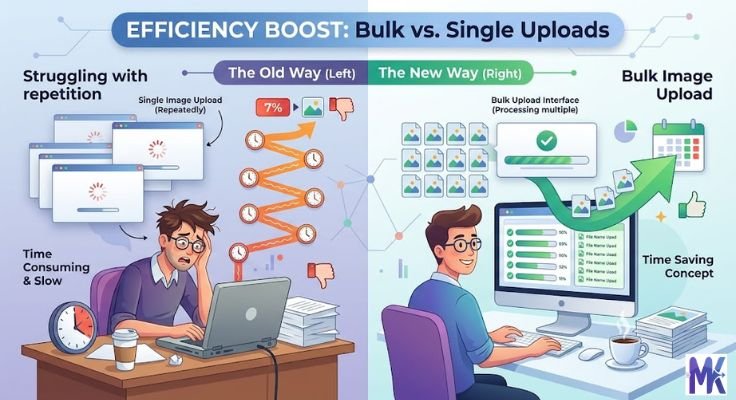
Instead of this: Upload image → compress → download → upload next image → compress → download → repeat twenty more times…
You do this: Upload all images at once → compress all → download all at once or individually. Done.
The result is the same compressed, optimised images ready for whatever you need them for. But the time and effort required drops dramatically.
For someone dealing with large numbers of images regularly, bulk compression is not just convenient. It is essential.
Who Needs Bulk Image Compression?
Almost everyone who works with images in any professional or semi-professional capacity benefits from bulk compression. Here are the most common use cases.
Bloggers and Content Creators
A single blog post might have 8 to 15 images featured images, in-content photos, infographics, screenshots. Multiply that by ten posts and you have 100 to 150 images to compress before publishing.
Without bulk compression, that is hours of repetitive work. With bulk compression, it is a few minutes.
E-Commerce Store Owners
Product pages need multiple images per product front view, side view, detail shots, lifestyle photos. A store with 50 products might have 200 to 300 product images to optimise.
Uncompressed product images slow down your store, hurt your SEO, and frustrate customers on mobile. Bulk compressing your entire product image library makes your store faster across every page simultaneously.
Photographers
Photographers regularly deliver batches of images to clients wedding galleries, corporate headshots, event photos, real estate shoots. These collections can range from 50 to 500 images.
Compressing preview images for client approval, or delivering web-resolution versions alongside high-resolution files, is much faster in bulk.
Web Developers and Designers
When building or redesigning a website, preparing all image assets is part of the job. Bulk compression handles the entire asset library at once rather than requiring individual attention for each file.
Government and Job Application Helpers
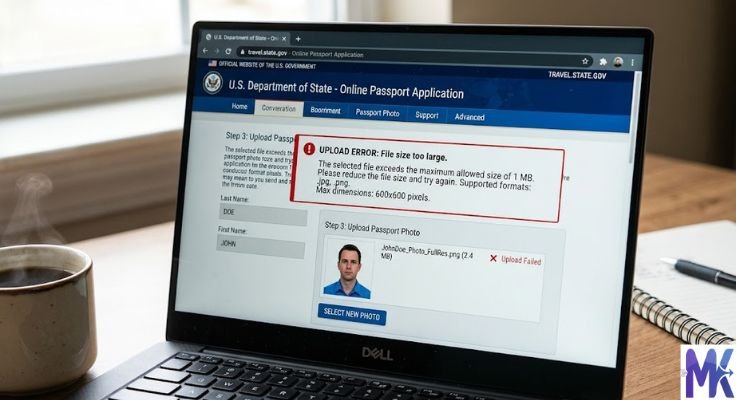
If you are helping family members or clients fill out multiple government applications passport forms, job applications, scholarship forms each requiring compressed photos and signatures, bulk compression handles all of them together.
Teachers and Educators
Creating digital learning materials, presentations, or online courses involves large numbers of images. Bulk compression keeps file sizes manageable across entire course libraries.
Real Estate Agents
Every property listing needs multiple photos interior rooms, exterior shots, garden, parking. A busy agent managing dozens of listings compresses hundreds of photos regularly. Bulk compression makes this workflow practical.
Small Business Owners
Updating a website, sending a product catalogue by email, creating marketing materials — all of these involve multiple images that need compressing before use.
Why Compressing Images One at a Time Is Inefficient
Let us be specific about the time cost of single-image compression versus bulk compression.
Assume you have 50 images to compress. Each single-image compression cycle takes approximately:
- 20 seconds to open the tool and upload
- 10 seconds to set the target size
- 15 seconds to wait for processing
- 10 seconds to download
- 10 seconds to organise the file
That is roughly 65 seconds per image. For 50 images, that is over 54 minutes of repetitive, manual work.
With bulk compression:
- 2 minutes to select and upload all 50 images
- 10 seconds to set the target size
- 30 seconds for processing
- 5 minutes to download all files individually
Total: under 8 minutes for the same 50 images.
That is a saving of nearly 46 minutes on a single batch. If you do this regularly, the time savings compound quickly.
What Happens to Quality During Bulk Compression?
This is the question most people ask before trusting a bulk tool with important images.
The answer depends on the tool and the target size you choose. A well-built compression tool applies the same intelligent compression to each image individually it does not apply a single uniform reduction across all files regardless of their content.
Good bulk compression:
- Analyses each image separately
- Removes data that is least visible to the human eye
- Strips unnecessary metadata from each file
- Reaches the target size for each image individually
- Preserves visual quality at the level appropriate for the target size
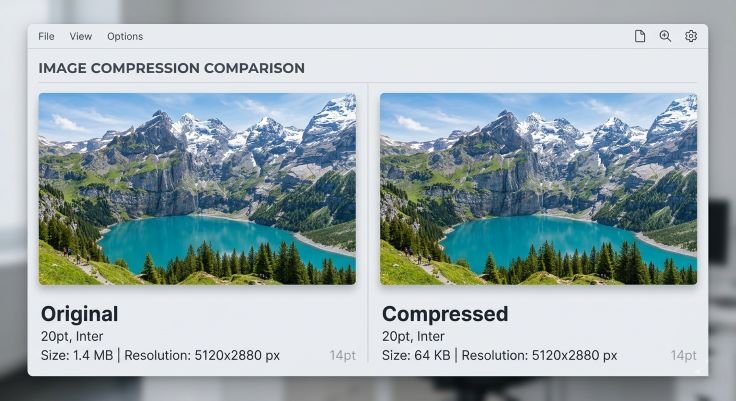
The result is that a simple image with large areas of solid colour reaches the target size with almost zero visible quality change, while a complex photograph with lots of fine detail also reaches the target size with quality optimised for that specific image.
At typical target sizes 100KB to 300KB for web images, 50KB to 100KB for form uploads bulk compression produces results that look identical to the originals at normal viewing sizes.
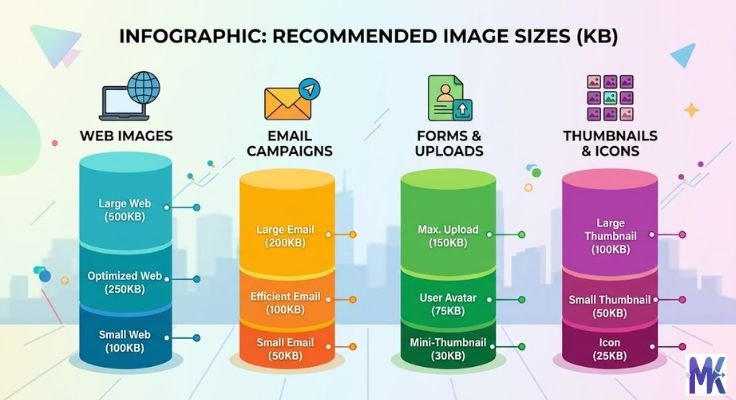
Target Sizes for Different Bulk Compression Use Cases
Knowing the right target size for your specific purpose is the key to getting good results every time.
Website Images
Hero images and banners: 150KB to 250KB These are large and prominent. They need to look great but load fast. This range achieves both.
Blog post content images: 80KB to 150KB Multiple images appear on each post. Keeping each one under 150KB keeps the page light and fast.
Product images: 100KB to 200KB Good quality for screen viewing. Multiple product images per page stay manageable.
Background images: 50KB to 100KB These load before other content. Keep them as small as possible without visible quality loss.
Thumbnails: 20KB to 50KB Small display size means small file size. A 150×150 pixel thumbnail does not need more than 30KB.
Email Attachments
Casual personal photos: 200KB to 400KB Looks sharp on any screen. Multiple photos stay well within email size limits.
Professional business images: 300KB to 600KB Higher quality for professional context. Still reasonable for email.
Reference or preview images: 50KB to 150KB When recipients just need to see the content, not print it.
Government and Application Forms
Passport photos: 20KB to 100KB Match the specific portal’s stated requirement.
Signature images: 10KB to 30KB Small files required by most official portals.
Supporting document scans: 100KB to 300KB Larger allowance but still need to be kept manageable.
Photography Client Delivery
Preview or proof images: 200KB to 500KB Good quality for screen review. Not full resolution that stays in the original files.
Web gallery images: 150KB to 300KB Fast loading in online galleries while looking sharp on client screens.
Storage and Archiving
Personal photo archives: 300KB to 500KB Significant reduction from original size while preserving quality for future viewing.
Document scans: 100KB to 200KB Readable and clear without consuming unnecessary storage.
Step-by-Step: How to Compress Images in Bulk Using mbtokb.site
Here is the complete process for bulk compressing images from selecting your files to downloading the results.
Step 1 — Gather Your Images in One Place
Before starting, organise the images you want to compress into a single folder on your device. This makes selection faster and keeps your compressed files easy to find.
If you are compressing images for different purposes some for a website, some for an email, some for a form separate them into different folders first. Each group likely needs a different target size.
Step 2 — Identify the Right Target Size
Ask yourself what these images are for. Match the target size to the use case using the guide above.
If you are compressing for a website: aim for 100KB to 200KB. If you are compressing for email: aim for 200KB to 300KB. If you are compressing for a government form: check the portal’s specific limit and match it.
Step 3 — Open mbtokb.site
Go to mbtokb.site in any browser on any device. No account needed. No software to install. The tool runs entirely in your browser.
Step 4 — Upload All Images at Once
Click the upload button. Navigate to your image folder. Select all the images you want to compress — use Ctrl+A on Windows or Cmd+A on Mac to select everything in the folder at once. On mobile, tap to select multiple images from your gallery.

All selected images appear in the tool ready for processing.
Step 5 — Set Your Target Size
Custom size: Type your target in KB. For example, type 150 for 150KB. Every image will be compressed to as close to that size as possible.

Fixed size options: Choose from the preset buttons:
- 10KB — for very small thumbnails or signature images
- 50KB — for form uploads and small thumbnails
- 100KB — for standard web images and form photos
- 150KB — good all-purpose web image size
- 200KB — slightly higher quality for professional use
- 250KB — for higher quality email attachments
- 300KB — for professional images where quality matters
- 350KB — maximum preset, for high-quality needs
Step 6 — Compress All
Click the Compress All button. The tool processes every image simultaneously. Processing time depends on the number and size of images typically a few seconds to half a minute for most batches.
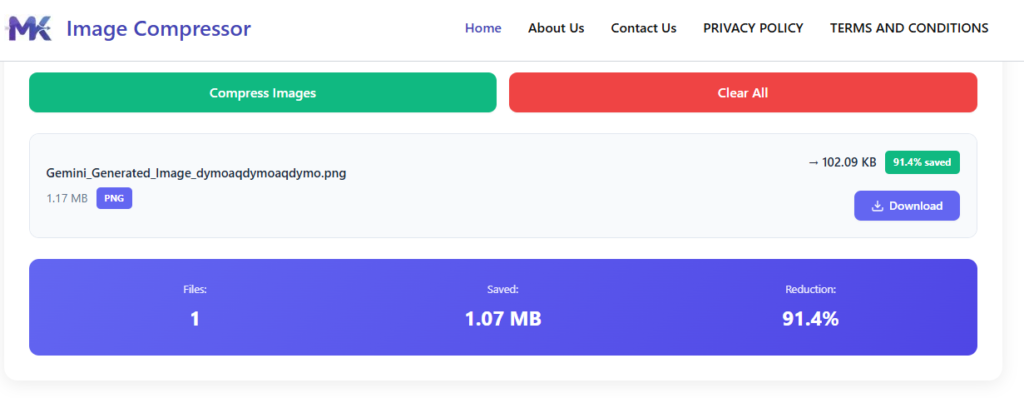
Everything runs locally in your browser. Your images are never sent to any server. Nothing is stored online.
Step 7 — Download Individually
Once processing is complete, download each compressed image with its individual download button. Files save to your default downloads folder.
Organise the downloaded files back into your working folder they are now compressed, optimised, and ready to use.
Step 8 — Verify a Sample
Before using all the compressed images, open a few and check them at normal viewing size. Confirm they look sharp, colours are accurate, and any text is readable.
If they look good you are done. If any look too soft go back and compress the whole batch to a slightly higher target size.
Bulk Compressing Images on Different Devices
On a Desktop or Laptop
Desktop is the most efficient environment for bulk compression because file management is easier and selecting large numbers of files is straightforward.
On Windows: Hold Ctrl and click to select multiple files, or use Ctrl+A to select all in a folder.
On Mac: Hold Cmd and click to select multiple files, or use Cmd+A to select all.
Upload all selected files to mbtokb.site, compress, and download to your output folder.

On Android
Open mbtokb.site in Chrome. Tap the upload button. In your gallery or file manager, tap and hold the first image to enter selection mode, then tap each additional image you want to include. Upload all selected images, compress, and download. Files save to your Downloads folder.
On iPhone
Open mbtokb.site in Safari. Tap the upload button. In the photo picker, tap Select at the top right, then tap each image you want to include. Upload, compress, and download. Files save to your Files app.
Organising Your Workflow for Regular Bulk Compression
If you compress images regularly for a blog, a store, a photography business building a consistent workflow saves even more time.
Create a compression pipeline
Set up three folders:
- Originals — where you store uncompressed source files, never to be overwritten
- To Compress — where you place images waiting to be processed
- Compressed — where compressed output files go
When you have a batch ready, move files into the To Compress folder, run them through mbtokb.site, and move the results to Compressed. Your originals stay safe and untouched.

Compress in batches by purpose
Group images by their destination before compressing. Website images go together at 150KB. Email attachments go together at 250KB. Form images go together at 50KB. This avoids mixing target sizes and keeps your workflow clean.
Keep both versions
Always keep the original uncompressed file alongside the compressed version. Storage is cheap. The ability to go back to the original to recompress at a different size, to crop differently, to use at full resolution someday is valuable. Never delete originals.
Schedule regular compression sessions
If you publish content regularly, schedule a compression session as part of your content preparation workflow. Before writing goes live, all images get compressed. Before products get listed, all product photos get compressed. Make it a consistent step rather than an afterthought.
Common Questions About Bulk Image Compression
If an image is already smaller than your target size, the tool leaves it at or near its current size. It does not artificially inflate small files to reach the target.
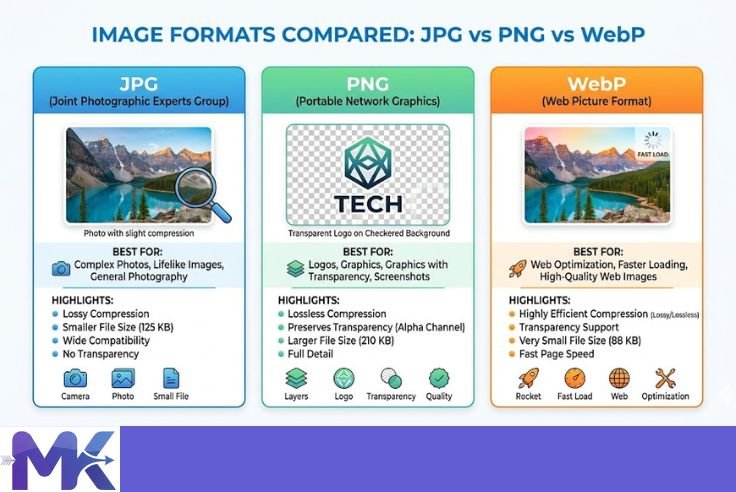
Yes. mbtokb.site handles JPG, PNG, and WebP images together in the same batch. Each file is compressed according to its own format and content.
Yes, a good bulk compression tool applies the same intelligent per-image analysis to every file regardless of batch size. Each image is compressed individually to the target size, not averaged across the batch.
For practical purposes, most devices handle batches of 20 to 50 images comfortably. Very large batches of 100 or more images may be better split into two or three sessions depending on your device’s memory.
For most web and email purposes, JPG is the right choice. If your images include graphics with transparent backgrounds, keep those as PNG. WebP is excellent for websites if your platform supports it.
All processing happens locally in your browser on mbtokb.site. No images are uploaded to any server. No data is stored online. Your files stay on your device throughout the entire process — even when processing large batches.
Yes. mbtokb.site works on any mobile browser. The multi-select process varies slightly by device but the compression and download steps are identical to desktop.
Mistakes to Avoid with Bulk Image Compression
Using one target size for all purposes
Compressing everything to 50KB works for form uploads but is too small for website images. Compressing everything to 500KB works for email but is unnecessarily large for web. Use the right target size for each batch based on its purpose.
Overwriting originals
Never save compressed files over the originals. Always keep the uncompressed source. You may need to recompress at a different size later, and starting from a compressed file adds another generation of quality loss.
Mixing batches with different requirements
If some images need 50KB and others need 200KB, do not compress them together. Split into separate batches with appropriate target sizes for each group.
Skipping the quality check
After compressing a large batch, always spot-check a few images at normal viewing size before using them. Catching a problem early like a target size set too low saves you from republishing or resubmitting with poor quality images.
Waiting until the last minute
Bulk compression is fastest and least stressful when it is a planned step in your workflow rather than a rushed task before a deadline. Build it into your process.
Conclusion
Bulk image compression turns a time-consuming, repetitive task into a fast, efficient step in your workflow.
One upload. One click. Every image compressed to exactly the size you need.
Whether you are optimizing a website, preparing email attachments, filling out multiple application forms, or delivering client photos compressing images in bulk saves significant time and produces consistent results across every file.
mbtokb.site makes bulk compression free, fast, and private. Upload as many images as you need at once, choose your target size (from a custom KB value to fixed options like 50KB, 100KB, 150KB, and more), and download all compressed images together or individually. Nothing is stored online everything runs in your browser.
Start compressing smarter not one image at a time.